NIKON IMAGE SPACE Closed: Save Your Photo Archive Before Deletion
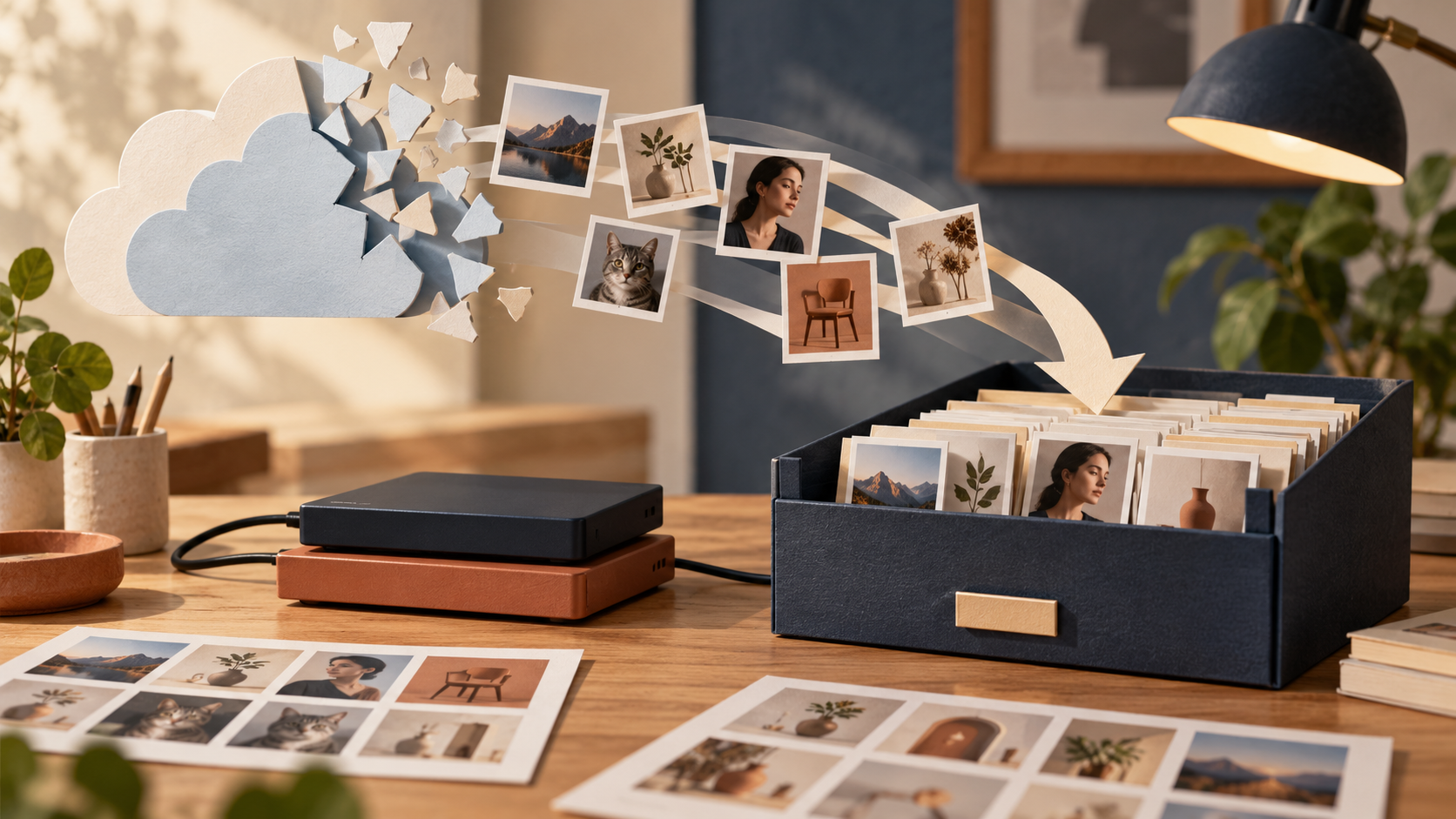
NIKON IMAGE SPACE closed on 15 October 2026. If you still have product images, portraits or business photographs stored there, the immediate task is to retrieve the archive and check that the copies open—not to send everything straight into editing.
In its service termination notice, Nikon says users who sign in will be taken to a bulk-download screen. No other features remain available. Downloads are available until 15 April 2027 at 13:00 Japan Standard Time, or 11:00 WIB. Nikon says all data will then be permanently deleted.
For a business, that archive may contain photographs still needed for a catalogue, promotional material or team profiles. Retrieving it early leaves time to check the download, locate important files and prepare useful working copies without relying on continued access to the old service.
Daftar Isi
NIKON IMAGE SPACE closed: use the browser download
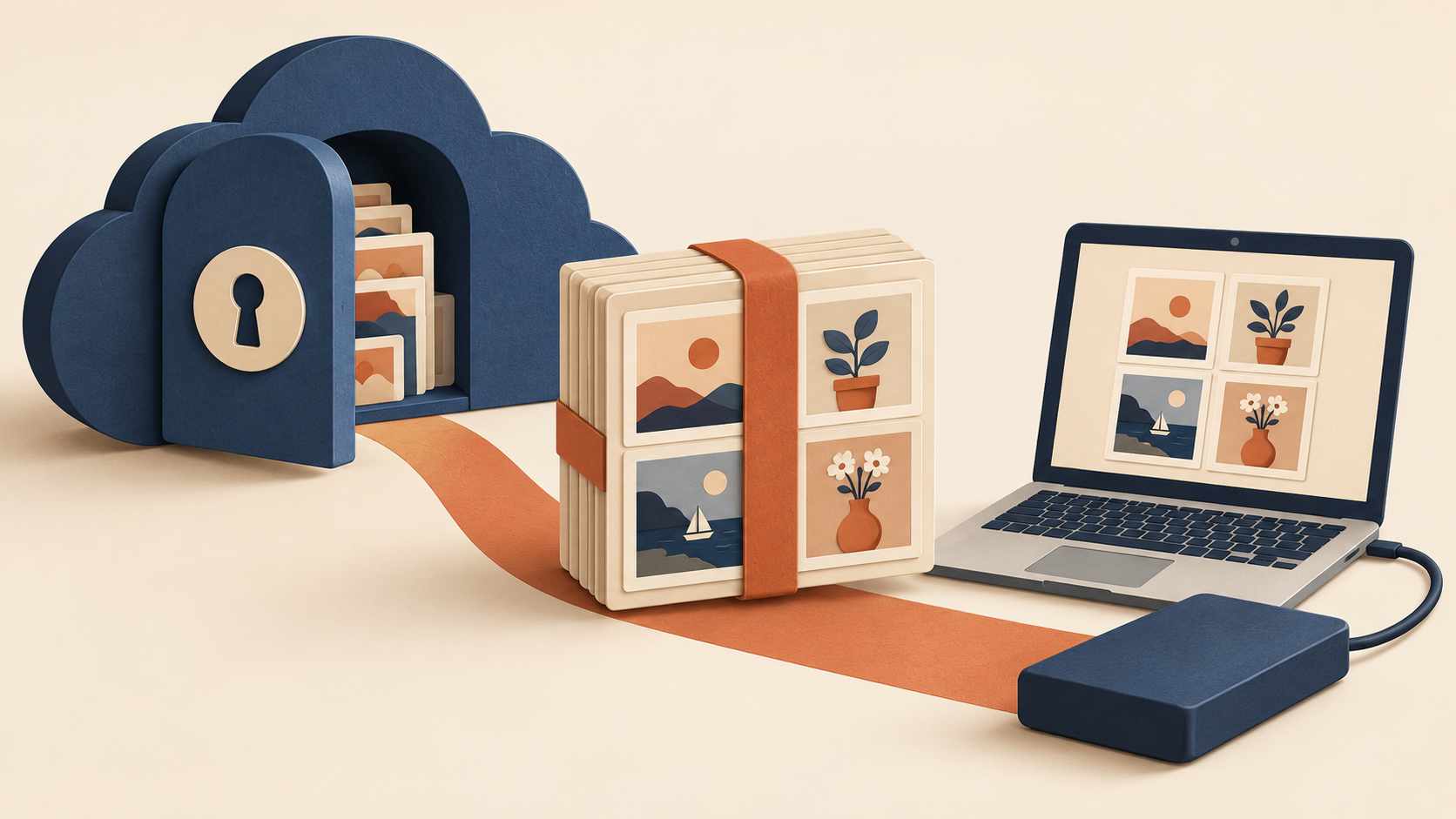
Open the official NIKON IMAGE SPACE website in a browser and sign in to your own account. Follow the instructions on the bulk-download screen. Nikon explicitly says downloads are unavailable through the smartphone app during this period, and individual albums or images can no longer be selected.
Older instructions that ask you to select thumbnails one by one therefore do not describe the remaining service. The current notice limits access to bulk downloading. Prepare enough storage for your archive and follow the instructions actually displayed in your account.
Keep the initial download in a separate folder before sorting or editing it. If the process is interrupted or the site reports an account problem, use Nikon’s official support channels. Do not share your password, verification codes or full account access with someone offering to help retrieve your photographs.
The closure does not mean your photographs have automatically moved to another storage service. Confirm where your own copies are held. News about cloud changes or a new camera is not confirmation that the files have reached your device.
Check the saved photographs and make a second copy
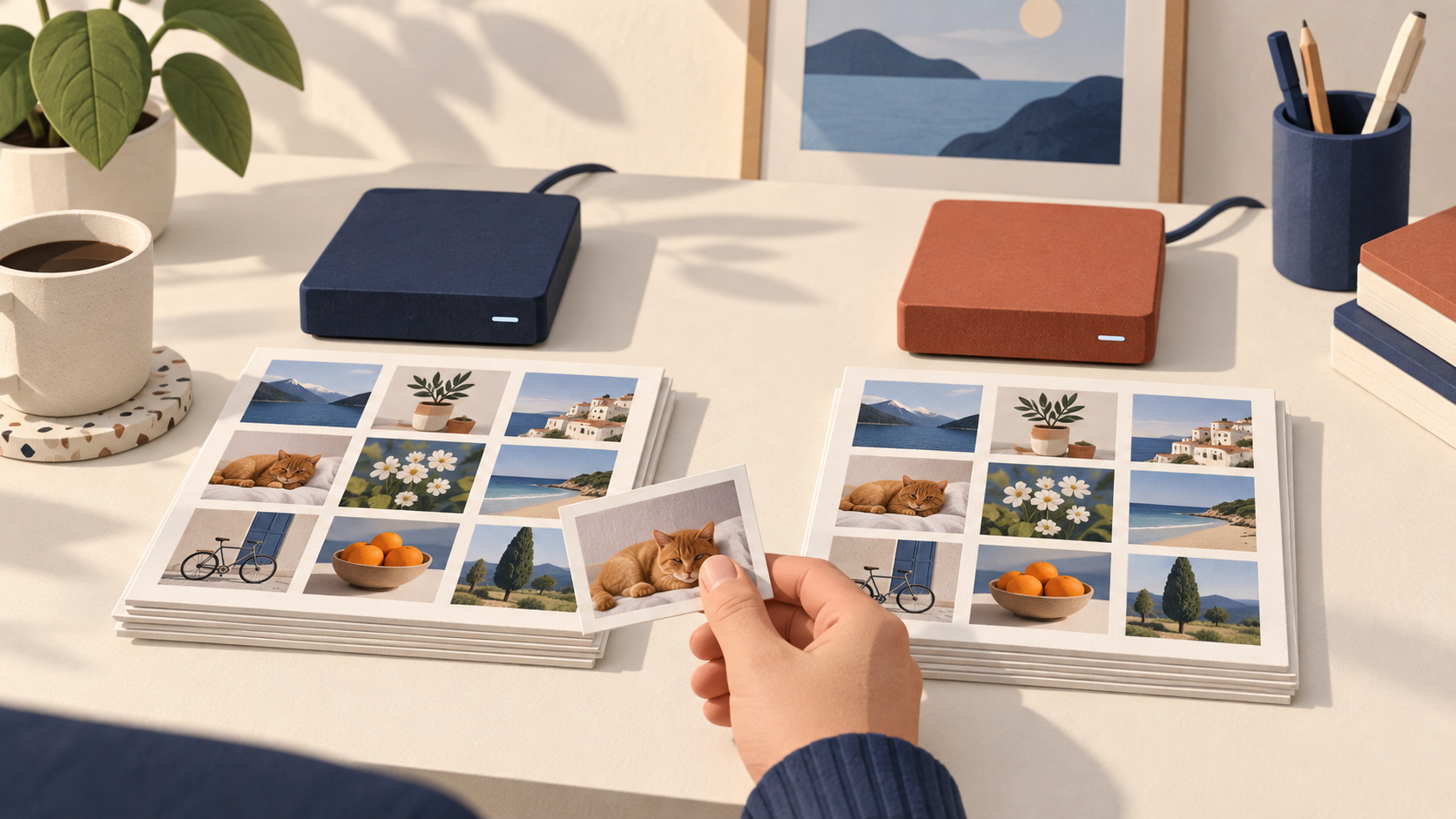
A completed download does not, by itself, tell you whether the material you need is easy to find and usable. As a practical check, open photographs that represent different needs: a product image with fine detail, a portrait intended for print and images from different periods. Check that they open, show the expected subject and have suitable pixel dimensions for your intended use.
If you have older records or copies, use them to help locate important jobs. Do not assume album structure, folder names, metadata or the quality of every file will necessarily match the original archive; the termination notice does not promise those details. Record gaps you actually find rather than judging completeness from thumbnails alone.
Make an additional copy in a separate storage location before deleting files, renaming large batches or editing. For example, retain the initial download on one device and use a working copy on another. The purpose is straightforward: a mistake while reorganising folders should not immediately destroy your only archive.
For business photographs, separate downloaded source files, selected images and finished outputs. Use folder names based on a job or period you recognise. Avoid overwriting the initial files simply because an edited version looks cleaner; the earlier version may still be useful for checking colour, composition or a previous approval.
Prepare working copies before commissioning retouching
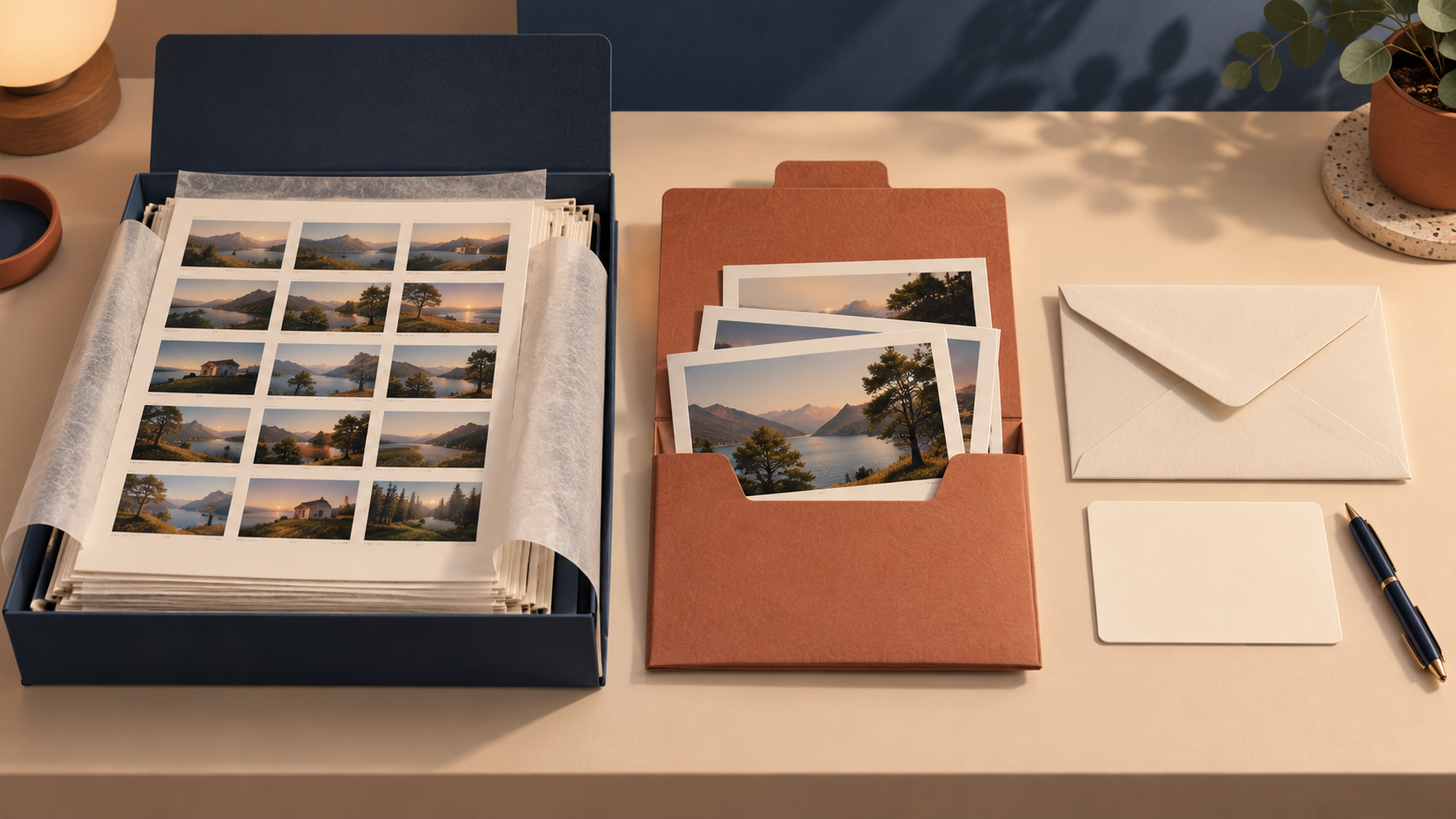
Once the archive is safe, select the photographs you genuinely need to use again. For a catalogue, identify products and variants that are still current. For portraits, check that the people and intended context remain appropriate. Successfully retrieving an older photograph does not automatically make it the right material for today’s publication.
Send copies of the selected images with a specific brief: what needs tidying up, which elements must remain unchanged and where the final image will be used. Correcting the lighting in a product photograph is different from changing the item’s colour. Removing a distracting background detail in a portrait is likewise different from reshaping a face.
Shaniba Creative Industry provides online photo editing and retouching. To reuse photographs you have already saved, discuss the selected images and intended output first. The available files and visible detail need to be assessed before deciding which changes are reasonable. Photo editing is not a substitute for retrieving an archive or recovering access to a Nikon account.
Retrieve the archive first, check the copies and then decide what work is needed. This keeps editing decisions attached to files you already control, rather than a service link with a limited access period.
Share this post to: