Product Photo Brief for Google Merchant Center: Main Images, Details and 2027 Planning
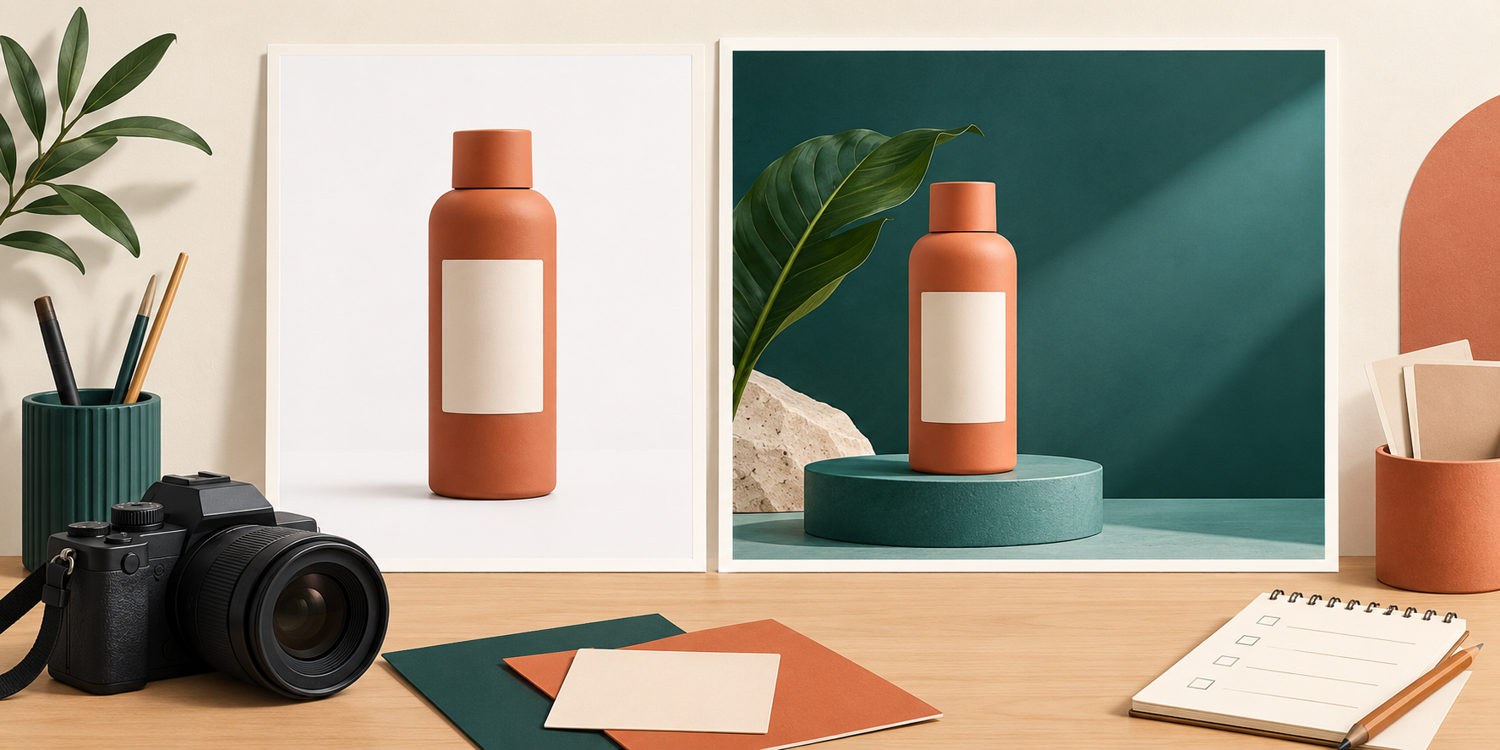
A product photograph can work well on social media and still be the wrong choice for a Google Merchant Center listing. A discount banner, several colour variants grouped together, or oversized props can leave shoppers unsure which item they are buying. Start your photography brief with the job each image needs to do, rather than a collection of visual references.
When planning Google Merchant Center product images, separate product identification from detail and context. That gives you a practical way to decide what needs a new shoot, which existing photographs remain accurate, and what resolution to request for 2027. It also keeps a future enforcement date separate from the files you choose to commission now.
Daftar Isi
Separate main and additional images
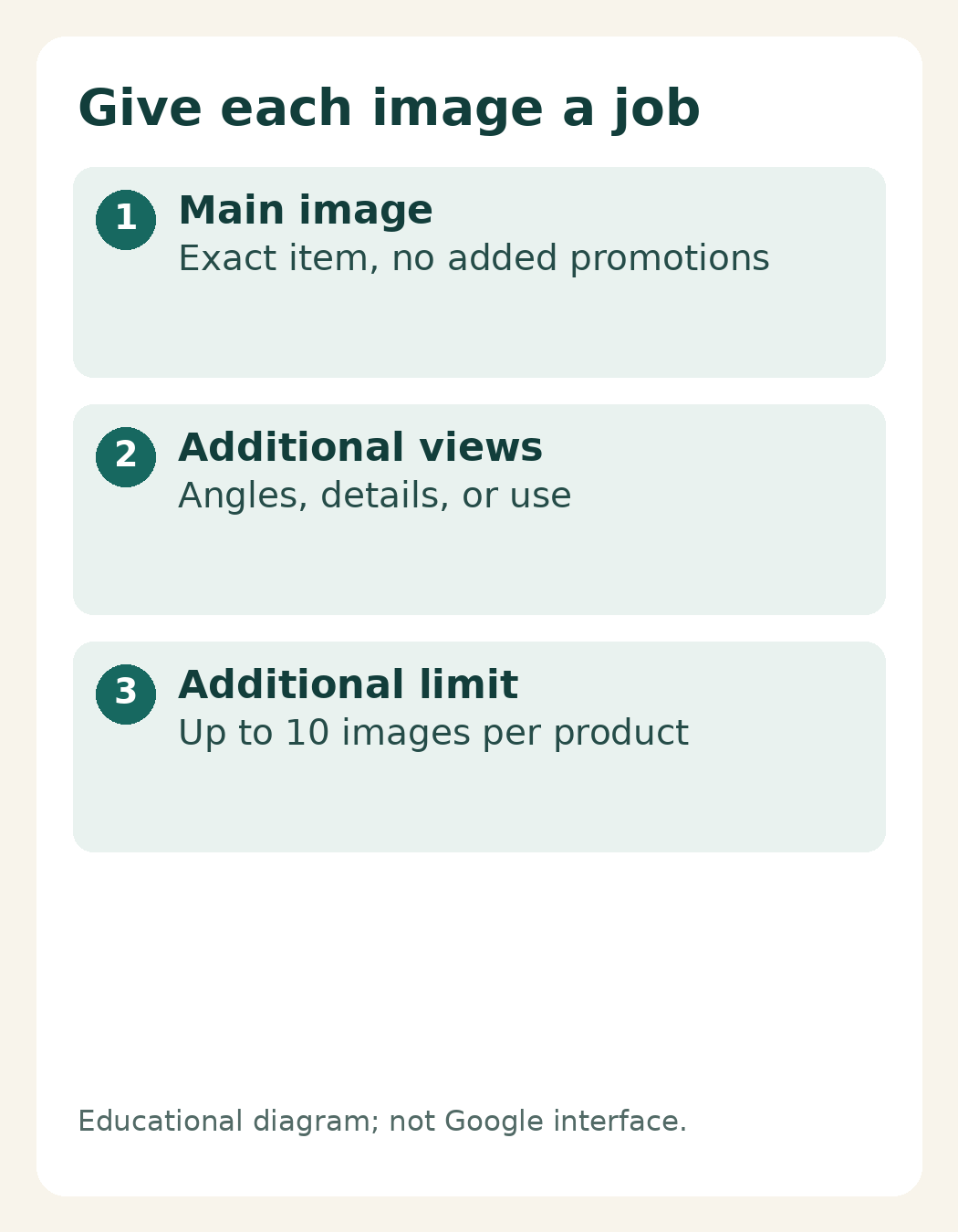
Google uses image_link for the main product image and requires it for each product. Alternative angles and detail photographs can be submitted through additional_image_link. Additional images are optional but recommended, with up to 10 additional images per product. [1][2]
Give the main image one clear purpose in your brief: show the item the customer will receive. Google requires the exact product to be visible without promotional elements or overlays. Do not add prices, purchase prompts, watermarks, or store logos during editing. A logo physically present on the product is different from one superimposed on the photograph. [1]
For an ordinary physical product, a plain background is often a practical way to make its shape readable. That is a creative direction, not a claim that every category requires a white background. Leave enough space to avoid cutting off edges, and control reflections that obscure the item. If your marketing team also needs promotional graphics, request those as separate exports.
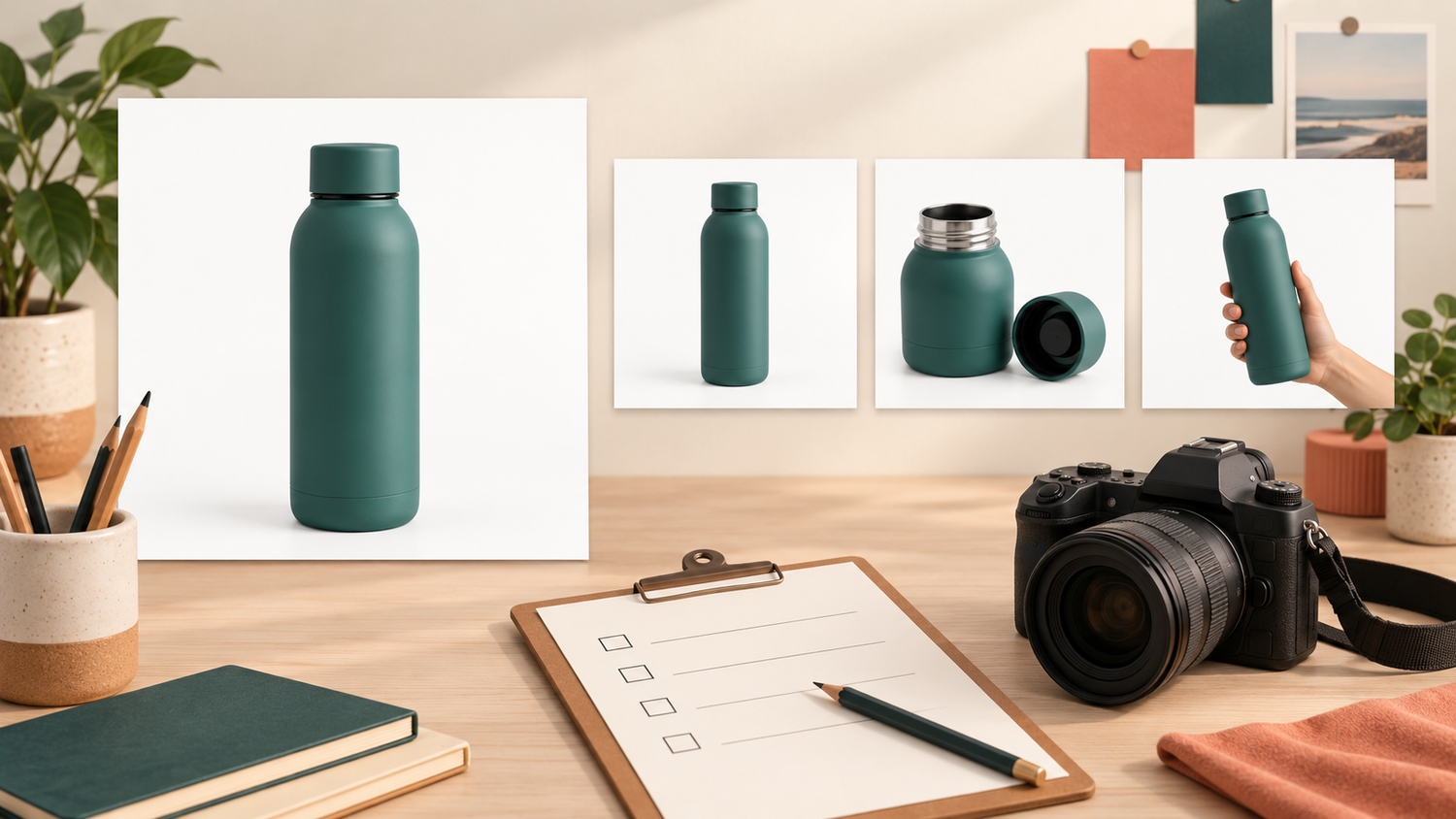
Consider a hypothetical water bottle sold without accessories. The main photograph should show that bottle, not a bottle beside a bag purchased separately. Google says not to include products that are not sold together with the main product. Additional images have more flexibility: they may show staging, the product in use, or a detail without displaying the whole item. [1][2]
Choose angles and details that answer buying questions
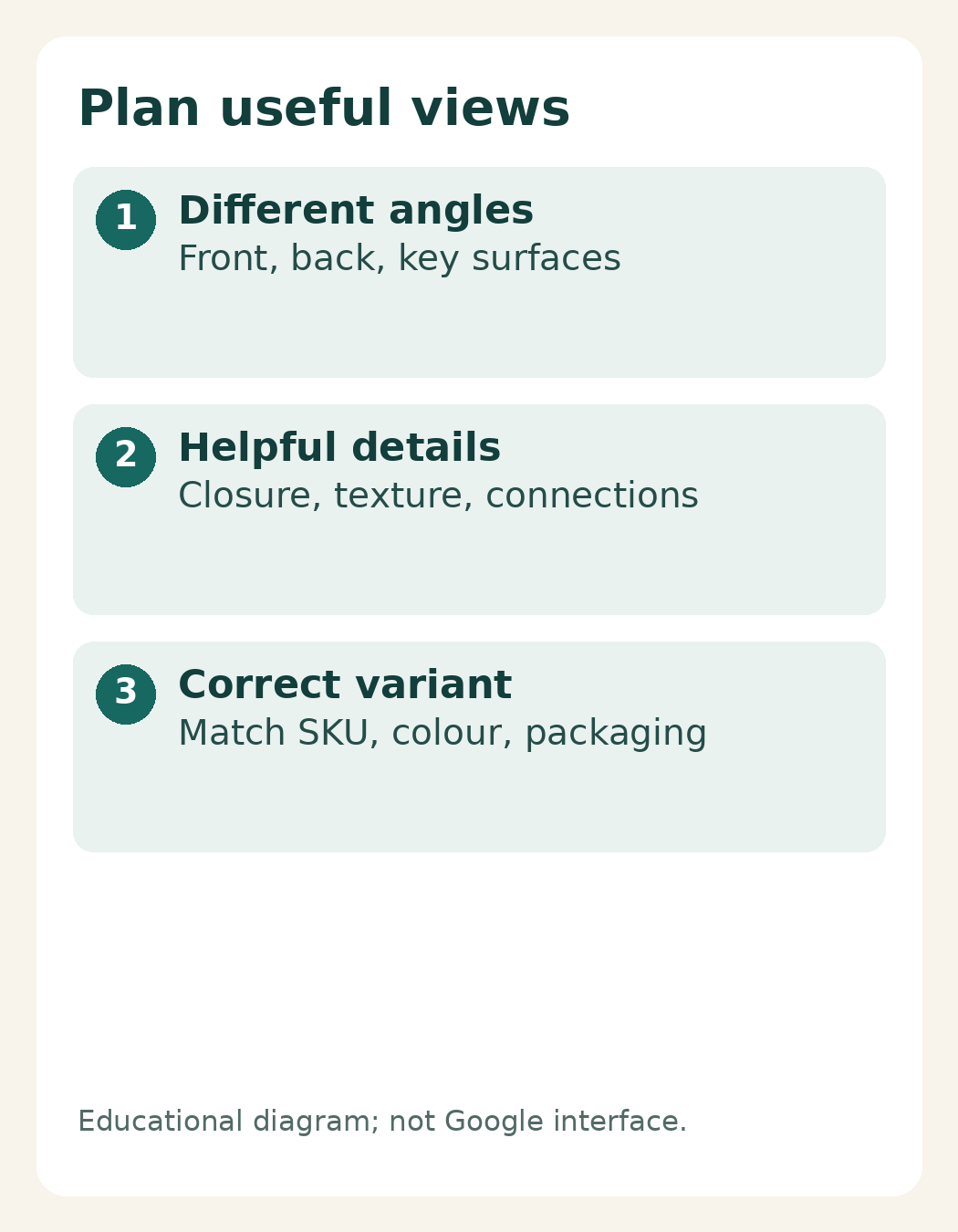
You do not need to fill every available slot. List the questions a customer might ask: what does the back look like, how does the lid close, and what is the surface finish? Each photograph should add information. Two near-identical angles may be less useful than one sharp close-up of a feature that is difficult to judge.
For the bottle example, your shot list might include a three-quarter view, the reverse side, the lid thread, and a photograph showing use. A bag may need an interior view, stitching detail, and the strap attachment instead. These are suggested photography choices, not a Google-mandated sequence or image count.
Connect every photograph to its SKU, the code used to identify an item in your catalogue. Google recommends a dedicated image for each variant that reflects its actual colour, pattern, finish, and material. Do not use one general photograph across different colours or substitute a group of colourways for the individual variant being sold. [1]
Prepare the correct samples before the shoot. Flag old photographs when packaging changes so they do not get mixed into the delivery. Ask for colour correction that preserves the item’s character rather than simply increasing saturation. When selecting images, check that texture remains believable and that reflections or heavy retouching have not erased useful detail.
A simple worksheet can track the SKU, variant, image purpose, angle, filename, and approver. The brand owner can check product accuracy, the photographer can follow the visual brief, and the catalogue manager can match files to listings without guessing. Agree on that ownership before the final selection arrives.
Record technical requirements and the 2027 effective date
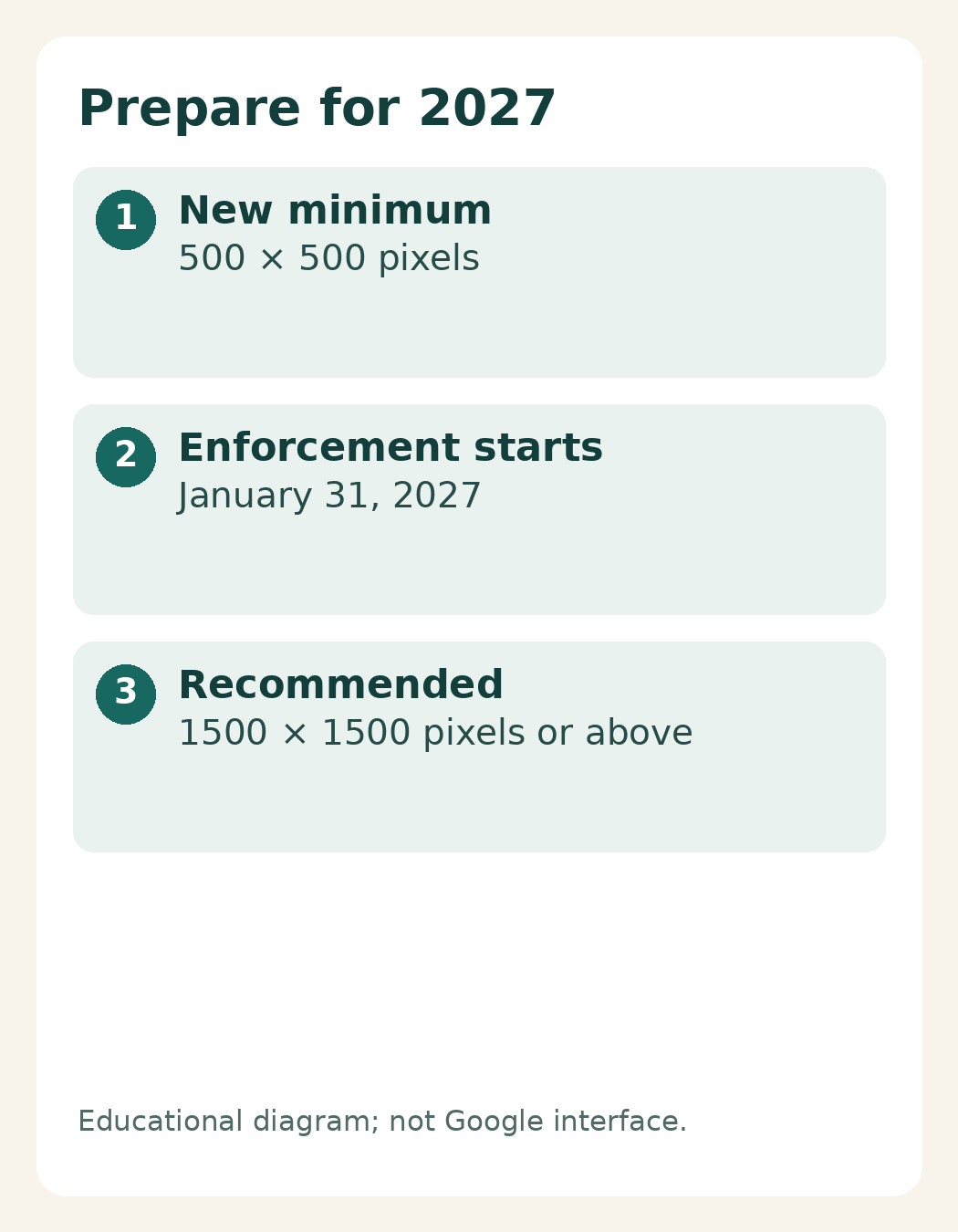
Google has announced a new minimum of 500 × 500 pixels for all products beginning January 31, 2027. Its product data specification explicitly states that enforcement of the new requirements begins on that date. You can therefore prepare files for the new standard before its enforcement date. [1][5]
The main-image page’s size table already lists at least 500 × 500 pixels. Google also recommends images around 1500 × 1500 pixels or above, with no image larger than 64 megapixels and no file larger than 16 MB. The 1500-pixel figure is a recommendation, not the new minimum. For a shoot commissioned now, request files that meet that recommended resolution where practical, while keeping the enforcement date clear. [1]
Supported formats include JPEG, WebP, PNG, GIF, BMP, and TIFF, and the file extension must match its actual format. Image URLs must also be accessible to Googlebot and Googlebot-image. A visually correct photograph therefore still needs a website handover and access check; sending it as a message attachment is not the complete implementation. [1]
Review the exported upload files, not just the masters. Compression can remove detail that looked clear in editing. For product images created with generative AI, Google requires metadata identifying that origin and says to preserve embedded information such as IPTC DigitalSourceType. An explanatory illustration accompanying an article is not automatically an upload-ready photograph of the actual item. [1]
A photography brief checklist for your team
Before requesting a quotation or booking a shoot, put your decisions in one short document. Instead of saying only “make it look like this reference”, explain what matters: lighting direction, visible texture, or a clear outline. Keep those preferences separate from any change that would misrepresent the product.
- Items: list SKUs, variants, package contents, and current packaging.
- Main images: identify a clear product view without added promotional design.
- Additional images: choose angles and details that answer specific customer questions.
- Delivery: agree on resolution, export formats, filenames, and separate master and upload folders.
- Approval: name the person checking colour, included items, and SKU matching.
- Implementation: assign URL checks, image accessibility, and follow-up on Merchant Center issues.
A clear brief improves coordination; it does not guarantee Google approval. Photographs and catalogue data still need to be considered together. To discuss a shoot, explore Shaniba Creative Industry’s product photography service page, in Indonesian [3], then bring your SKU list and examples through the SCI contact page, also in Indonesian [4]. Start with the images your catalogue needs and a discussion of scope, rather than promises about results that cannot yet be established.
Sources:
- [1] Google: Image link
- [2] Google: Additional image link
- [3] Shaniba Creative Industry: Jasa Foto Produk
- [4] SCI: Hubungi SCI
- [5] Google: Product data specification
Share this post to: