Stop WhatsApp Saving Photos to Your Gallery
To stop WhatsApp saving photos to your gallery, turn off Media visibility on Android or Save to Photos on iPhone. If you also want fewer files downloading automatically, change Media auto-download separately. Keeping pictures out of your gallery and preventing downloads are different jobs.[1][2]
For anyone exchanging product pictures, portrait previews or editing references, that distinction is useful: you can keep everyday chat images apart from the photographs you deliberately save for work. Start with the setting that matches your problem, rather than deleting a whole conversation.
Daftar Isi
Stop WhatsApp saving photos to your gallery
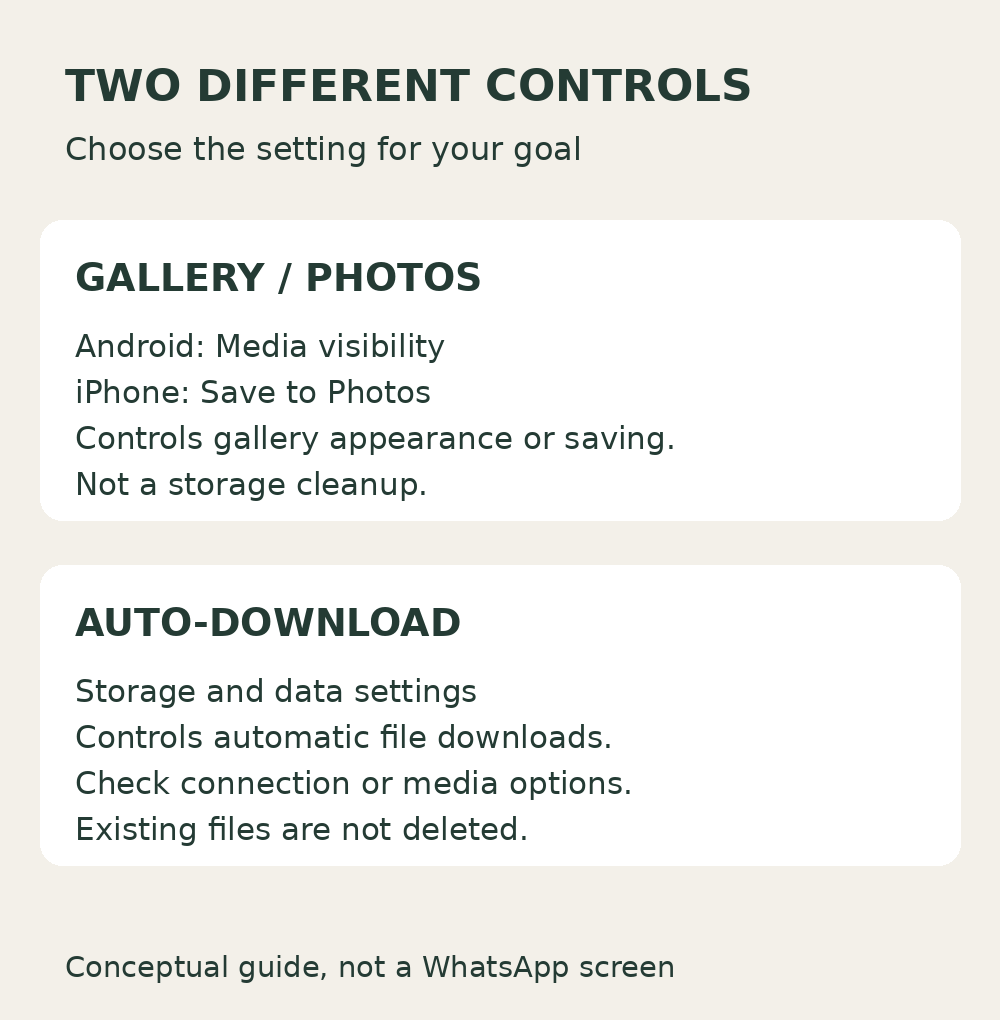
Choose the instructions for your phone. The app-wide setting and individual-chat preference are separate, so check both if one group still behaves differently.
Android: turn off Media visibility
- Open WhatsApp and tap the three-dot More options menu.
- Go to Settings → Chats.
- Turn Media visibility off.
For just one conversation, open that chat, tap the contact or group name, then choose Media visibility → No → OK. WhatsApp notes that changing the general setting does not change previous choices made for specific chats or groups.[1]
Do not treat a tidier gallery as proof that storage has been freed. WhatsApp also keeps media in its own media folder on Android. Review automatic downloads as well if file accumulation is your concern.[1][3]
iPhone: turn off Save to Photos
- Open WhatsApp Settings, or tap your profile picture to reach settings.
- Open Chats.
- Turn Save to Photos off.
For one person or group, open the conversation, tap its name, then select Save to Photos → Never. The chat-level menu also offers Always and a default option. Review any existing exceptions rather than assuming the general switch has reset them.[2]
Menu wording can differ by app version. Use the setting actually shown on your device; if the route is unfamiliar, follow the platform-specific WhatsApp Help Center link below instead of changing unrelated phone permissions.
Control automatic downloads separately
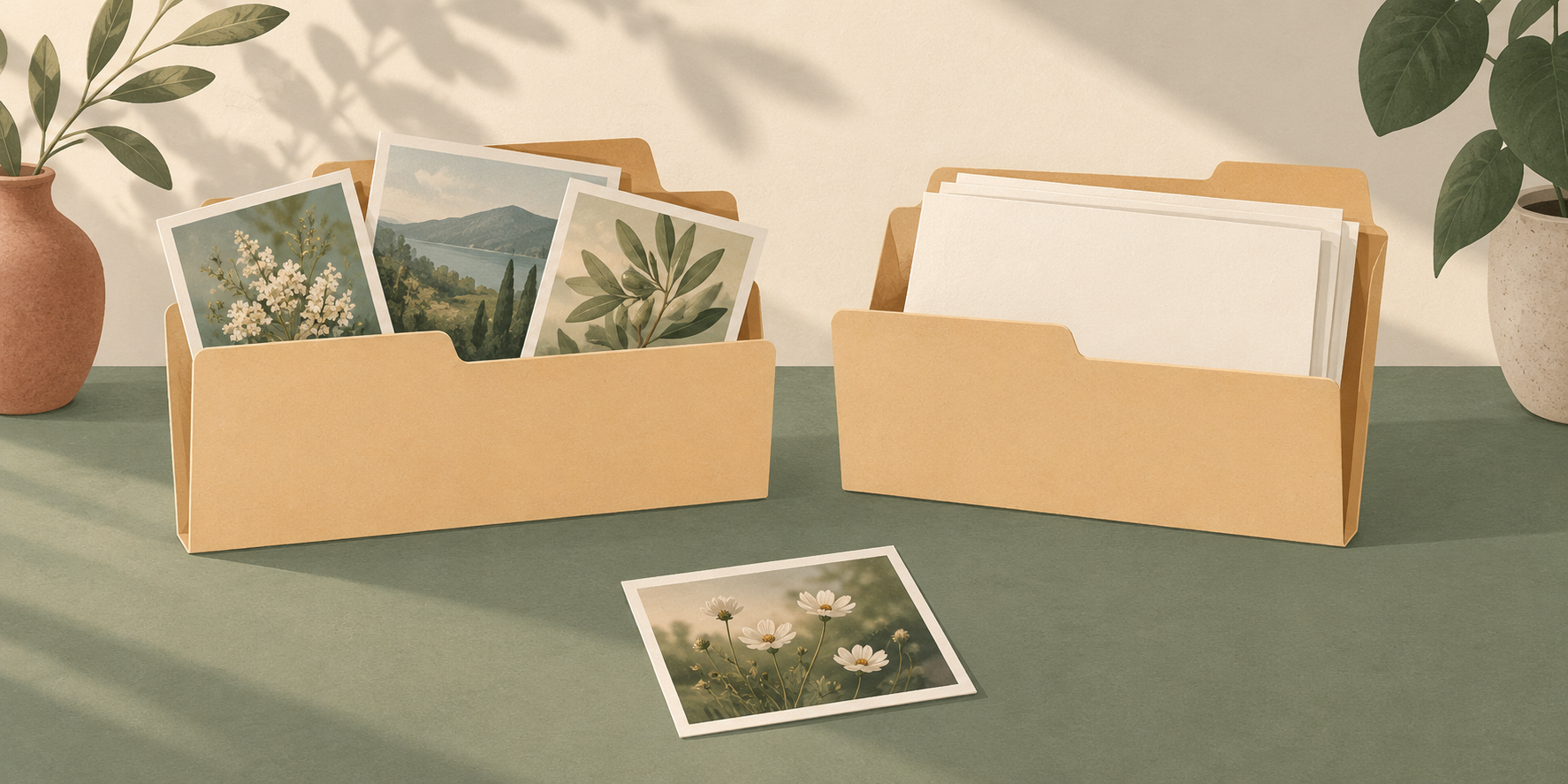
Use download controls when the aim is to avoid fetching every incoming picture or video automatically. They are not a command to delete files you already have.
On Android: open More options → Settings → Storage and data. Under Media auto-download, open each connection category: When using mobile data, When connected on Wi-Fi and When roaming. Clear the media types you do not want downloaded automatically and confirm with OK. Review all three categories; changing mobile-data choices alone leaves the other connection choices separate.[3]
On iPhone: open Settings → Storage and data. Under Media auto-download, select a media type and choose Never if you want to download its files manually. Repeat for the relevant media types. WhatsApp notes that tapping a video’s play button starts playback and continues its download in the background, even with automatic download set to Never.[4]
For example, you might stop a busy group’s pictures appearing in your gallery while still allowing downloads on Wi-Fi. Alternatively, turn off automatic photo and video downloads as well, then choose individual files when you need them. These are different preferences, not competing solutions.
Keep important photo files deliberately
Before clearing older chat media, separate the pictures you need from disposable references. For a photography or retouching job, a simple folder with the original files, a separate selection of references and clear filenames is easier to review than a mixed collection of chat previews.
- Keep your original camera or delivered files in a location you can find independently of the conversation.
- Label references as references, so they are not mistaken for the photograph to be edited.
- Before deleting anything, confirm that the required files open from the location where you intend to keep them.
- Check the consequences in the gallery or cloud-photo service you use before bulk deletion. A visibility switch is not a backup plan.
If photos still appear after the change, check whether they were already present, whether someone saved them manually, and whether that particular chat has its own preference. Test your settings with a harmless new picture rather than assuming an older gallery item proves the change failed.
For an editing enquiry, send the original you want assessed and explain the intended changes. Shaniba Creative Industry offers online photo editing and retouching; use the SCI contact portal to ask which files and instructions are suitable for your request.[5]
The practical order is simple: decide what should appear in Gallery or Photos, decide what should download automatically, then preserve important originals before any cleanup.
Helpful references: WhatsApp’s Android media-saving instructions [1], iPhone media-saving instructions [2], Android auto-download settings [3] and iPhone auto-download settings [4].
Share this post to: