
Sending Photos for Editing: Check Source Files and Link Access First
You have chosen your photographs and explained the areas that need attention. But the link you sent only opens a gallery, and the downloaded image turns out to be a small copy. A photo editing file handoff check gives you a clearer starting point: identify the files to be edited, make them accessible to the intended recipient, and confirm that they actually open.
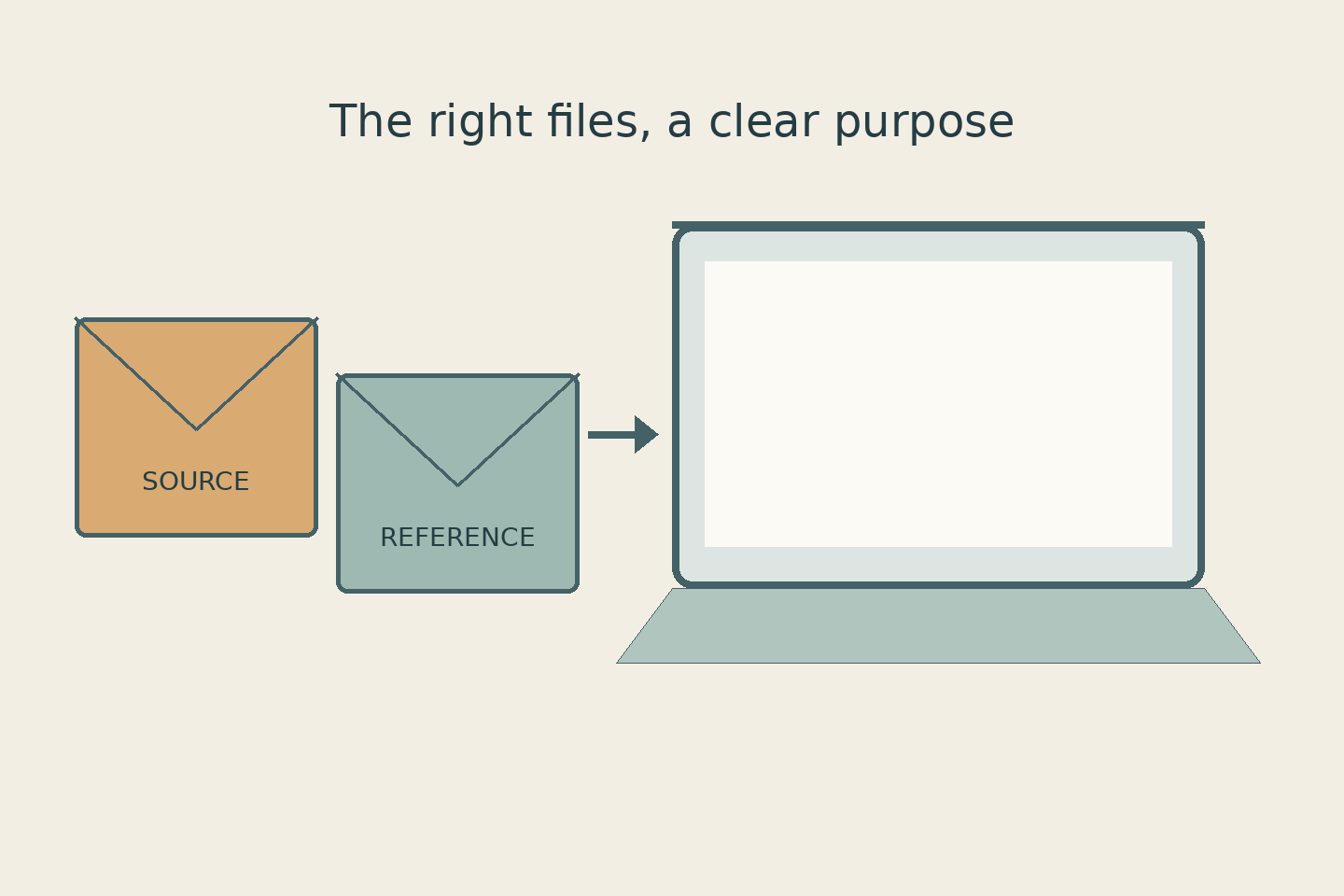
This is not about owning a particular camera or subscribing to special software. It is about choosing the best available source, separating it from reference material, and making sure the person doing the work receives the files you meant to send.
Daftar Isi
Choose a source file, not a preview screenshot

Start where the photographs were originally stored: a camera folder, phone, computer, or photographer’s archive that you are entitled to use. Select the image file itself rather than taking a screenshot of its gallery preview. A screenshot records what is displayed on a screen; it is not a copy of the source file with all the information that file contains.
If several copies exist, do not rely on names such as “final” or “HD”. Check their pixel dimensions and open the images. Pixel dimensions describe an image’s width and height in pixels. They help distinguish copies but do not guarantee sharpness: a large image can still be blurred, while its size in megabytes also depends on format and compression.
Keep your source separate and send a copy for editing. If you only have a small image or screenshot, say so at the start. An editor can assess what is possible, but you should not assume that missing detail can always be recovered accurately. For formal photographs or products that must represent their actual appearance, explain which features must remain unchanged.
Separate editing sources, references, and old outputs
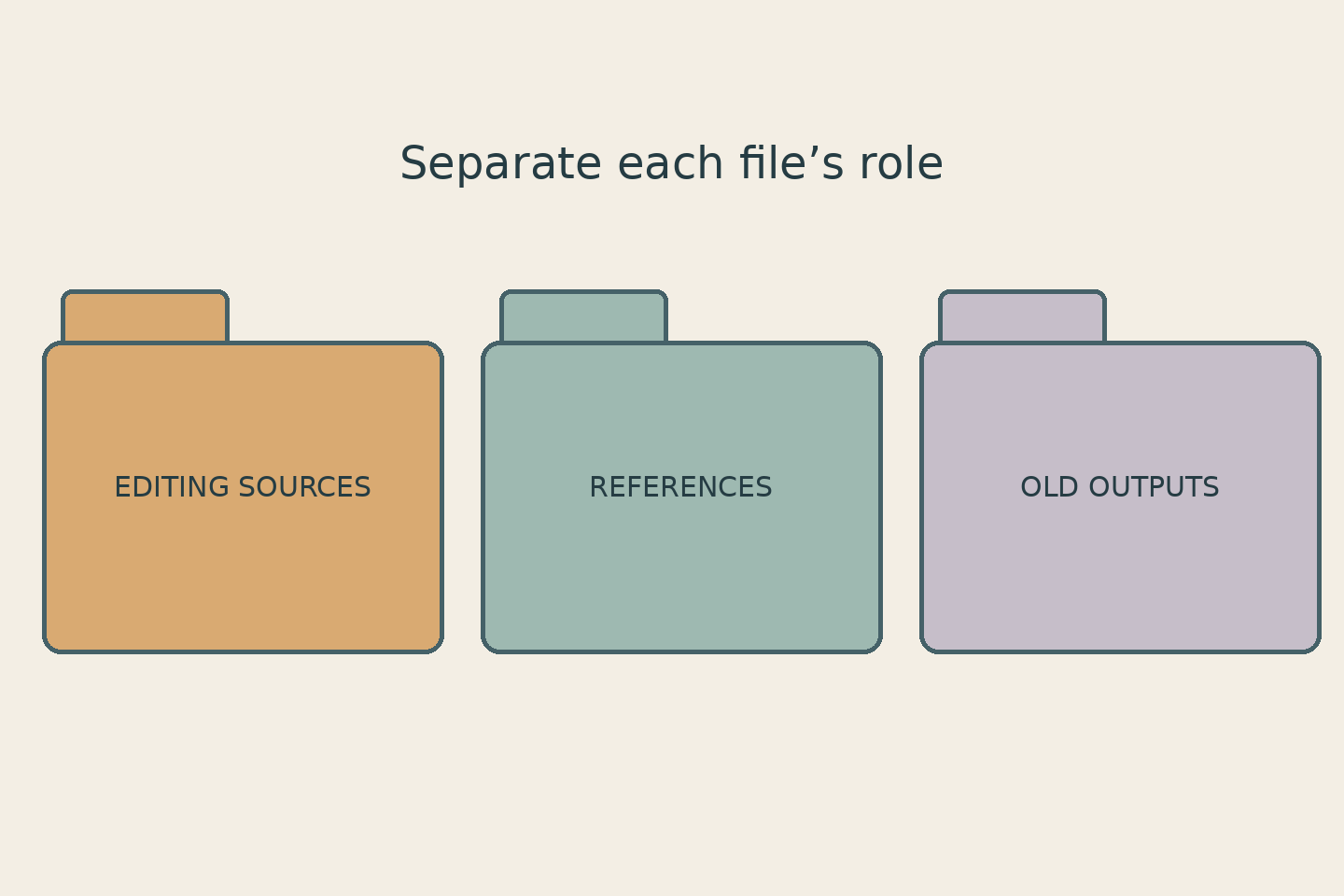
Imagine sending three images of the same object: the original photograph, an example of the colour treatment you like, and an earlier edited version. Without an explanation, they can easily be mistaken for equivalent source material. Use separate folders or groups, such as “Editing sources”, “References”, and “Previous outputs”. These are organisational examples, not a required service format.
Explain what each reference is for. “Follow the background mood, but do not change the product colour” is clearer than “make it look like this”. For an older output, say whether it is just a comparison or the version that should be developed further. When images look nearly identical, attach instructions to their full filenames so that a request does not end up applied to the wrong photograph.
Send only material that is needed and that you are allowed to share. A reference image does not automatically give permission to copy someone else’s photograph or incorporate it into a composite. If photographs contain personal information or belong to someone else, agree on the material and authorised recipients before sending rather than opening an entire archive for convenience.
Test access and downloads for the intended recipient
A link that opens for you may not open for your editor: your device may already be signed into the owner’s account. Check the recipient’s address or invited account and ask them to confirm access. Do not respond to a permission problem by immediately making all the material publicly accessible.
Distinguish permission to view a gallery from the ability to obtain the required file. Adobe’s Lightroom sharing tutorial describes “Anyone can view” and “Invite only” access. It also distinguishes a linked web gallery from exports such as “JPG (Small)”, “JPG (Large)”, and “Original”. This is an example of why the displayed photograph and the delivered file need separate checks, not a requirement to use Lightroom when sending material to SCI.
With the owner’s permission, test downloading one file through the route the recipient will use. Match its name and dimensions to the copy you intended to send, then open the download. If they differ, check that service’s export or download choices. Do not assume every messaging application always reduces quality or that every link automatically provides an original file.
Confirm that the files open before work begins
Once the delivery is complete, ask for a specific confirmation: the number of source files received, whether the selected sources open, and whether the references are clearly identified. “The link arrived” does not establish that the files are ready to use. For a large delivery, agree on an initial sample check and a list of problematic files. One image opening successfully does not prove that an entire folder is sound.
Include a short message, for example: “The Editing sources folder contains four photographs. The reference is only for the background colour direction. Please confirm that all four files open and let me know if any version needs replacing.” This is a communication example, not a real project account. If you are asked to resend something, identify the version that replaces the old file so that both are not treated as active work.
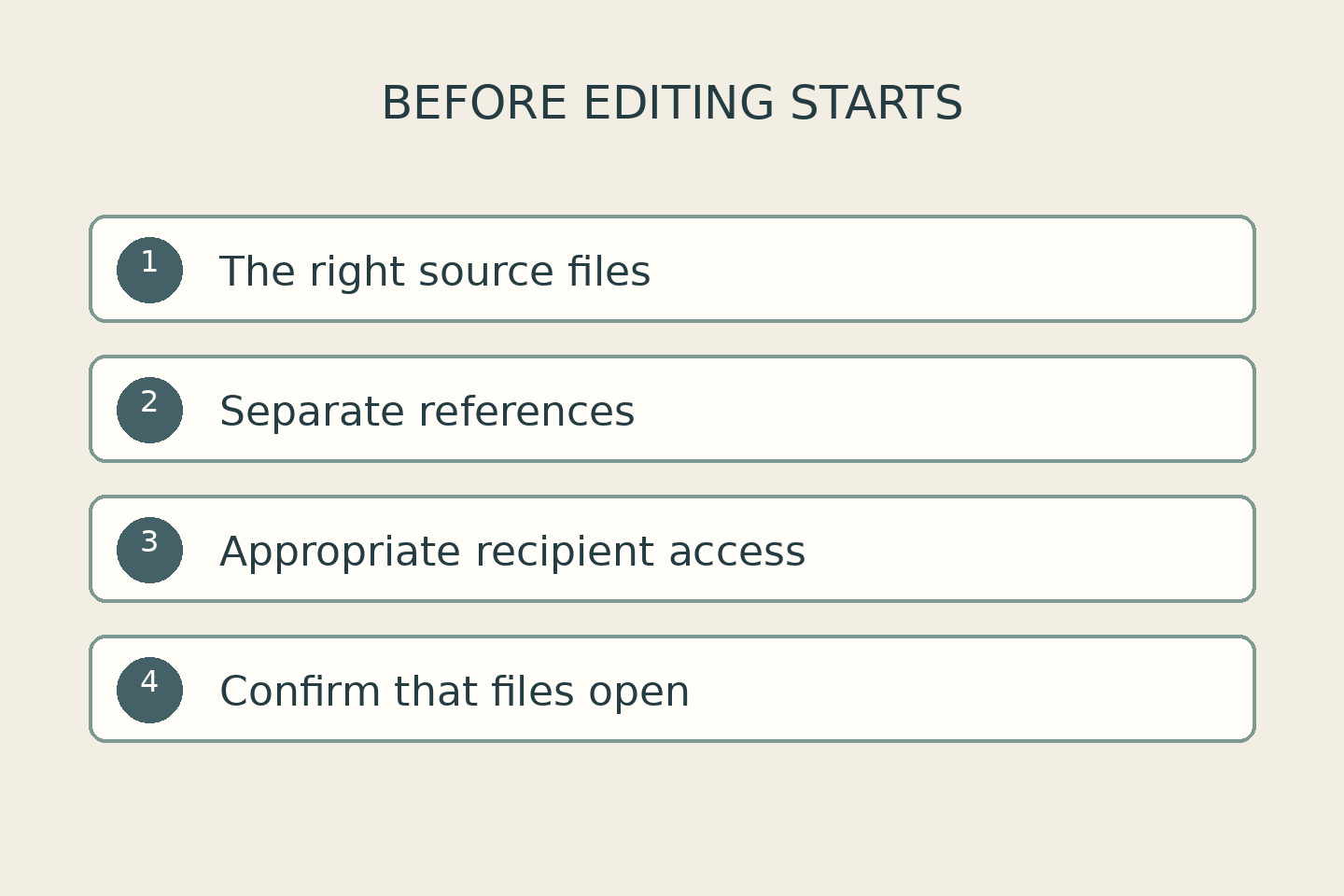
Before editing begins, confirm four things: the right sources, separate references, appropriate recipient access, and files that open. You can then discuss visual changes from a shared starting point. Final output requirements are a separate conversation; do not confuse the input files with the deliverables you expect to receive.
Bring clear source material to your SCI consultation
Shaniba Creative Industry describes online submission, review, and delivery on its photo editing service page. When contacting the SCI consultation portal, have one source example, the areas that need attention, and questions about the appropriate delivery route ready. Do not send account passwords or your entire personal archive simply to show an example.
A photo editing file handoff check does not guarantee that every image problem can be fixed. Its benefit is simpler: you and your editor know which material is being discussed, what each file is for, and which obstacles need resolving before work starts.
Reference: Adobe: sharing photographs and Lightroom export choices.
Share this post to: