
Instagram Photo Editing with VSCO and Snapseed
Instagram photo editing is easier when you decide what the photograph needs before choosing a filter. A dark product needs a different adjustment from a tilted portrait or an image with a distracting background. Start with a usable original, make a few deliberate changes, then check whether the result still represents the subject honestly.
VSCO and Snapseed offer different starting points. VSCO is useful for exploring a consistent look through presets; Snapseed provides individual tools for tonal adjustments, framing and small distractions. Neither replaces clear lighting or guarantees engagement. For a business account, recognisable products and a coherent set of images matter more than an effect that looks dramatic on one photograph.
Daftar Isi
Start with a photograph worth editing
Take a few views of the subject and choose one with a clear point of interest. Check focus and important detail before committing to it. If a label is unreadable or a face is out of focus, sharpening is not a reliable substitute for another photograph. Keep the original file separately so you can return to it without working from a repeatedly saved copy.
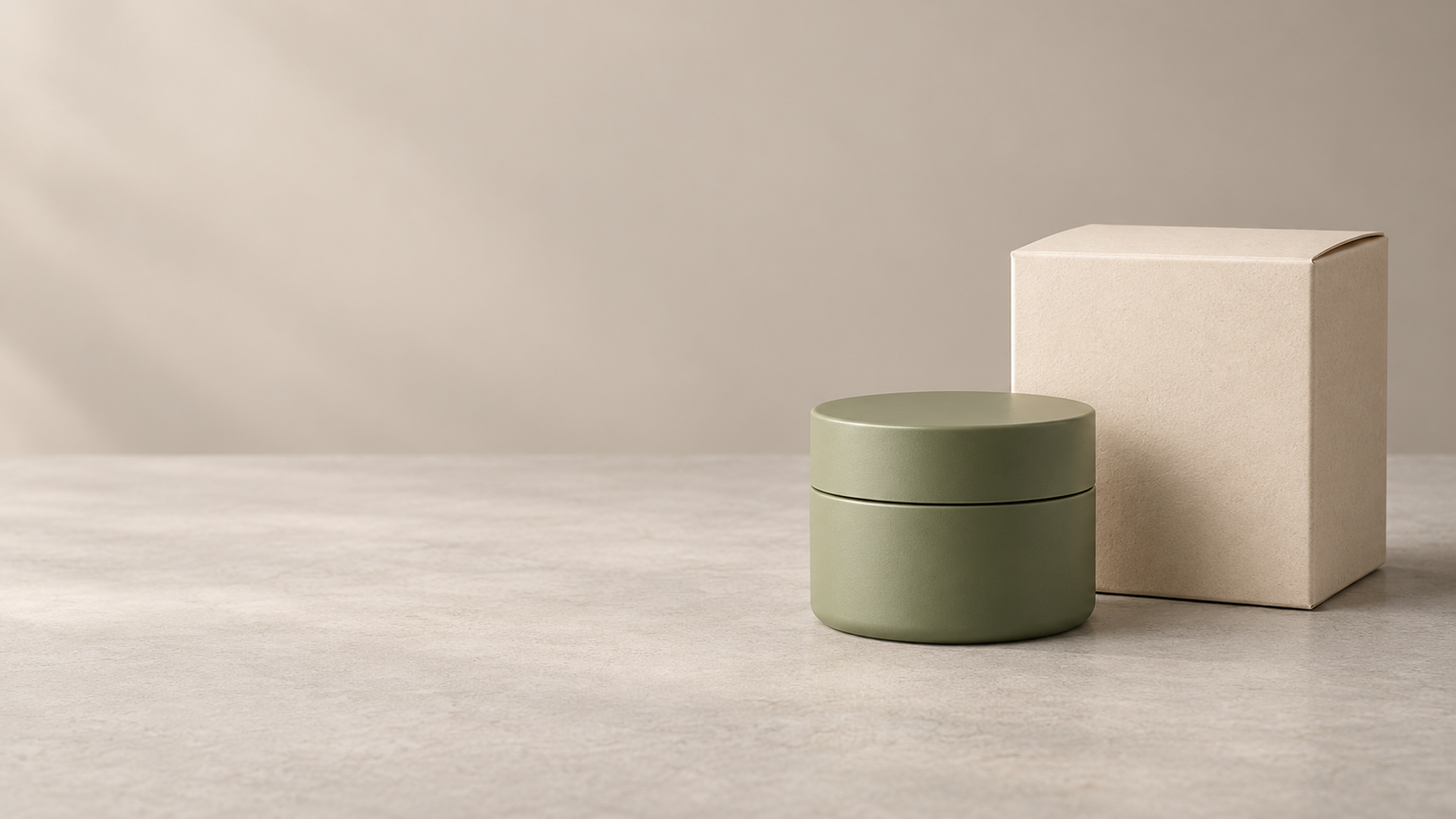
For a hypothetical small shop in Yogyakarta, a useful starting image might show a handmade cup beside its packaging. Decide whether the post needs to explain colour, scale or surface texture. That decision tells you what must remain visible after cropping and what should not be changed by a strong colour treatment.
Use VSCO presets as a starting point

In VSCO, import the photograph into Studio, select it and open Edit. You can begin with a preset or the Toolkit. Tap the selected preset again to adjust its strength; VSCO’s own instructions distinguish the strength slider on classic mobile presets from the additional controls on Film X presets. Available tools and presets can depend on your app version and plan. [1]
Try a restrained setting first. Look at a neutral background, skin tones or a product colour you know, rather than judging only the overall mood. If the cup becomes a different shade of blue, reduce the effect or choose another look. A consistent visual style should not make customers guess which colour they are ordering.
After editing, use Next and review the saving choices. Saving to your Camera Roll or Gallery is separate from posting to a public VSCO Profile. Select only the destination you intend; exporting an image for Instagram does not require publishing it on VSCO. [1]
Refine light and framing in Snapseed

Open the image and choose Tools. Tune Image includes Brightness, Contrast, Saturation, Ambiance, Shadows, Highlights and Warmth. The official instructions describe vertical swipes for selecting an adjustment and horizontal swipes for changing it. Brightness affects the whole image, while Shadows and Highlights address their respective tonal areas. [2]
Adjust the actual problem rather than following a fixed recipe. Lift a dark image cautiously, protect light surfaces from losing detail and avoid making every photograph cooler. Warmth changes the colour cast; it is not an instruction to turn all images blue. Compare with the original as you work. Snapseed supports press-and-hold comparisons and zooming for closer inspection. [3]
Next, straighten distracting tilted lines and choose a crop that suits the intended placement. A square can work, but it is a composition choice, not a universal requirement for every Instagram image. Check the actual posting preview before uploading. Leave enough room around faces, handles, labels and other details that explain the subject.
Instagram photo editing: four final checks
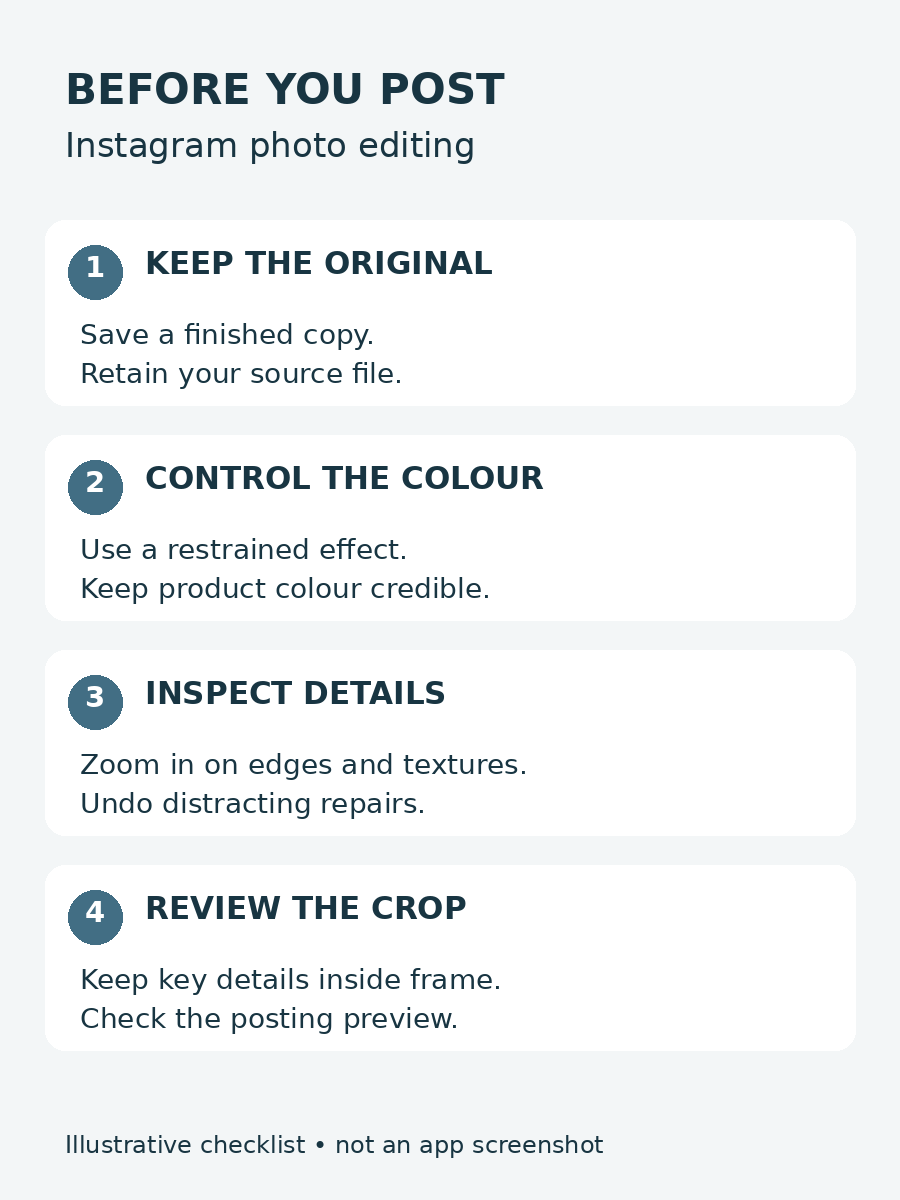
Before exporting, check four things: keep the original, control the colour treatment, inspect details and review the final crop. These checks are more useful than applying the same strong settings to every image.
Zoom in on edges and textures. Snapseed’s Healing tool lets you brush or tap unwanted spots and undo the change, but inspect the result rather than assuming every removal is clean. A repeated texture, distorted edge or missing product feature is a reason to undo or leave the area alone. Do not remove a feature customers need to understand what they are buying. [4]
Then look at the whole photograph on your phone and beside the other images intended for the same post. Check brightness, colour and framing together. Save a finished copy while retaining the original, and review the Instagram preview for an unexpected crop before publishing.
When a more detailed edit needs a brief
If a background repair, difficult selection or larger set of photographs needs closer attention, send the original files and a short brief instead of only a heavily filtered example. State what should change, what must stay accurate and where the images will be used. A reference can explain the direction, but it should not silently authorise changing product colour or a person’s identity.
Shaniba Creative Industry provides online photo editing and retouching. You can review the SCI editing service page and discuss your photographs and instructions before deciding on the scope. Ask about the proposed work and deliverables for your files rather than assuming an app preset and a detailed retouch are the same service. [7]
Useful app instructions
[1] VSCO: How to use VSCO
[2] Snapseed: Tune Image
[3] Snapseed: Getting Started with Tools and Filters
[4] Snapseed: Healing
[7] Shaniba Creative Industry: photo editing service
Share this post to: