Red Photo Background: How to Change It on Your Phone
Need a red photo background but only have your phone? The useful starting point is not the brightest red swatch. It is a clear original portrait, the right background requirement and a cutout that keeps your hair and shoulders intact. You can replace the surroundings without changing the person in the photograph.
For a profile image, you may have room to choose the shade and crop. For an application or document, follow the receiving organisation’s rules first. A red background alone does not make a photograph acceptable: size, framing, image quality and permitted editing can matter too.
Daftar Isi
Prepare the portrait and the required colour
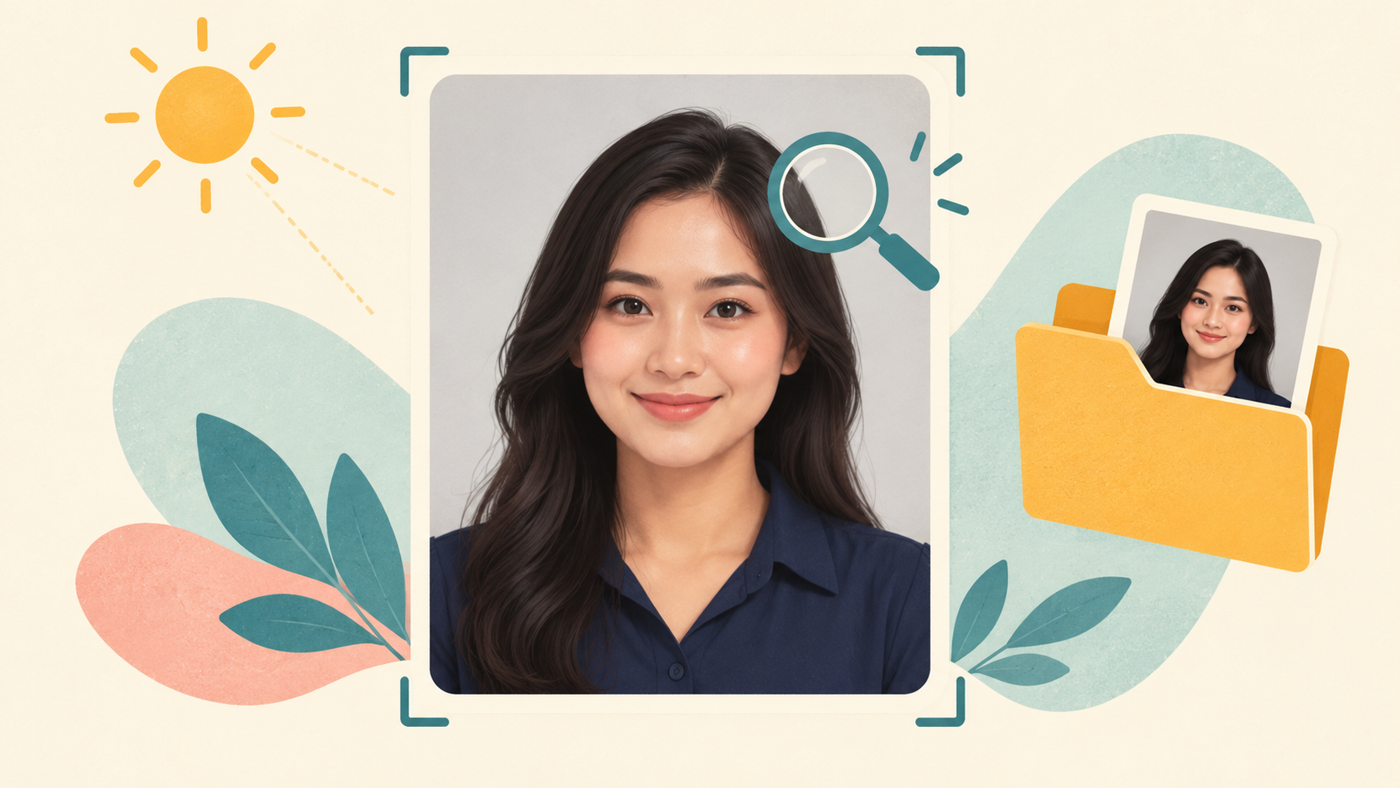
Keep an untouched copy of your original. Choose a photograph in which the face is sharp, the hair is not cut off and both shoulders have enough space around them. A plain background makes it easier to see what should stay and what should disappear. Avoid starting with a small screenshot if the original image is available.
Read the destination’s instructions before opening an editor. If they specify a colour code, use that value rather than a red that merely looks similar on your screen. If they only say red, ask for clarification when the distinction affects acceptance. There is no single red code that this guide can promise will suit every institution.
Decide what you are changing: the background, not your facial features, clothing or identity. Save creative filters for other uses, especially when the image is intended to represent you accurately.
Create a red photo background on your phone
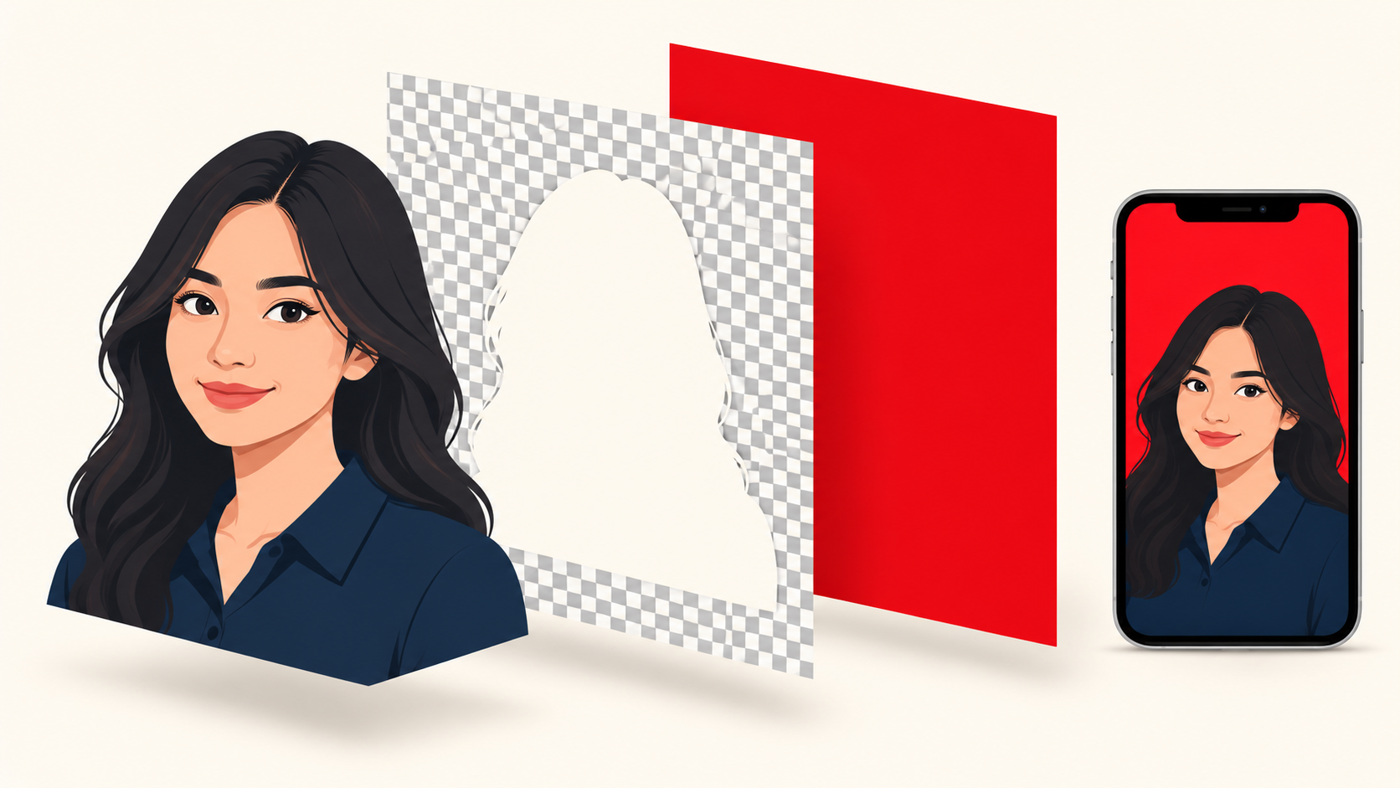
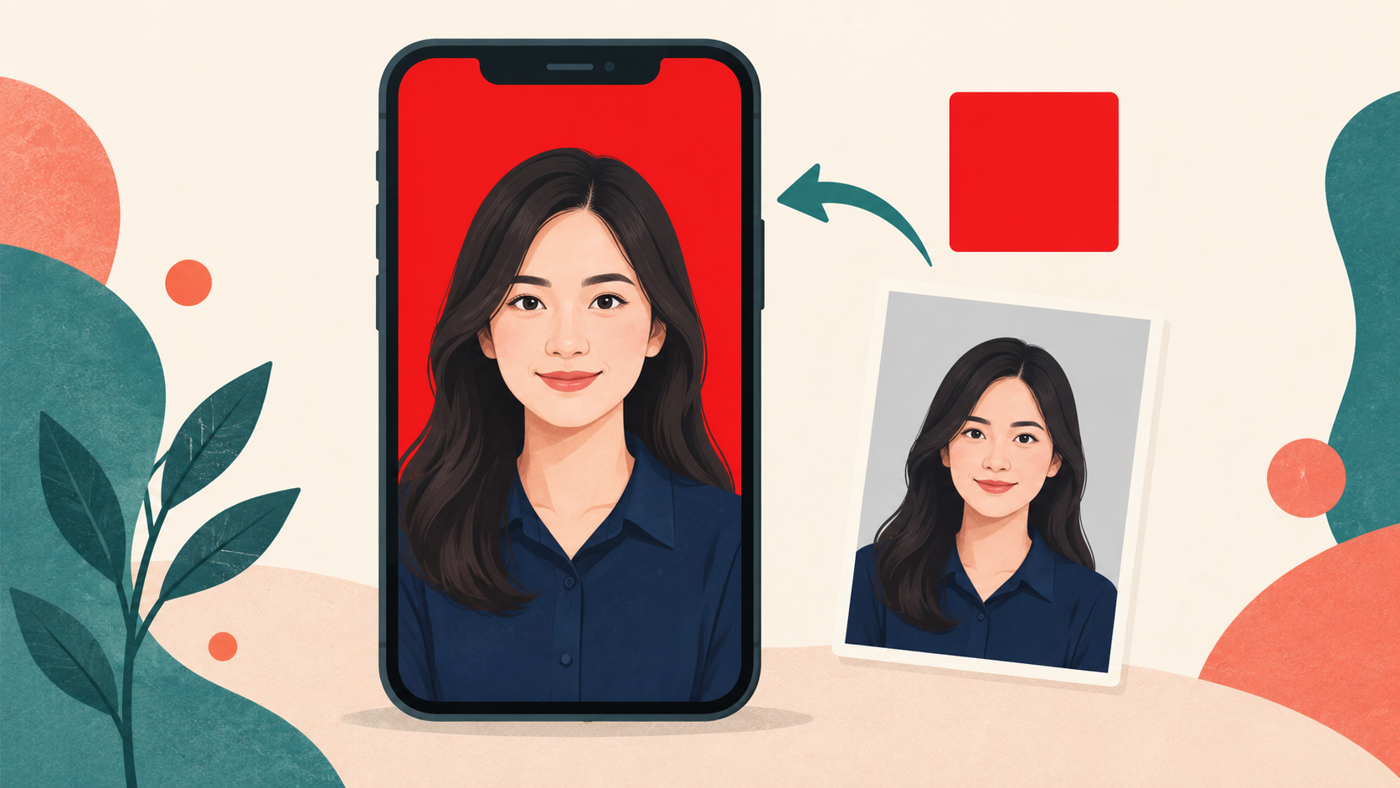
One documented route is remove.bg in a mobile browser. Its iPhone guide describes opening the website in Safari and choosing Upload Image. Its red-background page explains that the background is removed automatically and a solid red can be selected from the colour tab.[1][3]
Service change: remove.bg says its standalone website will no longer be available from 1 December 2026 at 9:00am CET, with background removal moving to Canva. Check its transition information before relying on that route; these are remove.bg steps, not instructions for Canva’s interface.[5]
- Open the tool and upload your original. Select the portrait from your phone. Use a photograph you have permission to edit, and review a web tool’s privacy terms before uploading sensitive images.
- Inspect the automatic cutout. Look at hair, ears, the neckline and the gaps beside the shoulders. Do not assume the first selection is complete just because the background has disappeared.
- Choose a solid colour, not a red scene. The colour tab is the relevant option for a plain background. A red-themed photograph or generated scene is a different result.[1]
- Enter the required colour where supported. remove.bg’s colour tutorial describes selecting a swatch or opening the colour grid to enter a HEX value. HEX is a written colour code; use the value supplied by your destination rather than inventing one.[2]
- Review the complete frame before downloading. Check that the fill covers the whole background and the face has not been cropped too tightly.
Tool layouts and account conditions can change. Before committing, check whether the available download provides the resolution you need and whether a paid option is involved. Do not assume every feature or full-resolution export is free.
Check the edges, then save a separate export
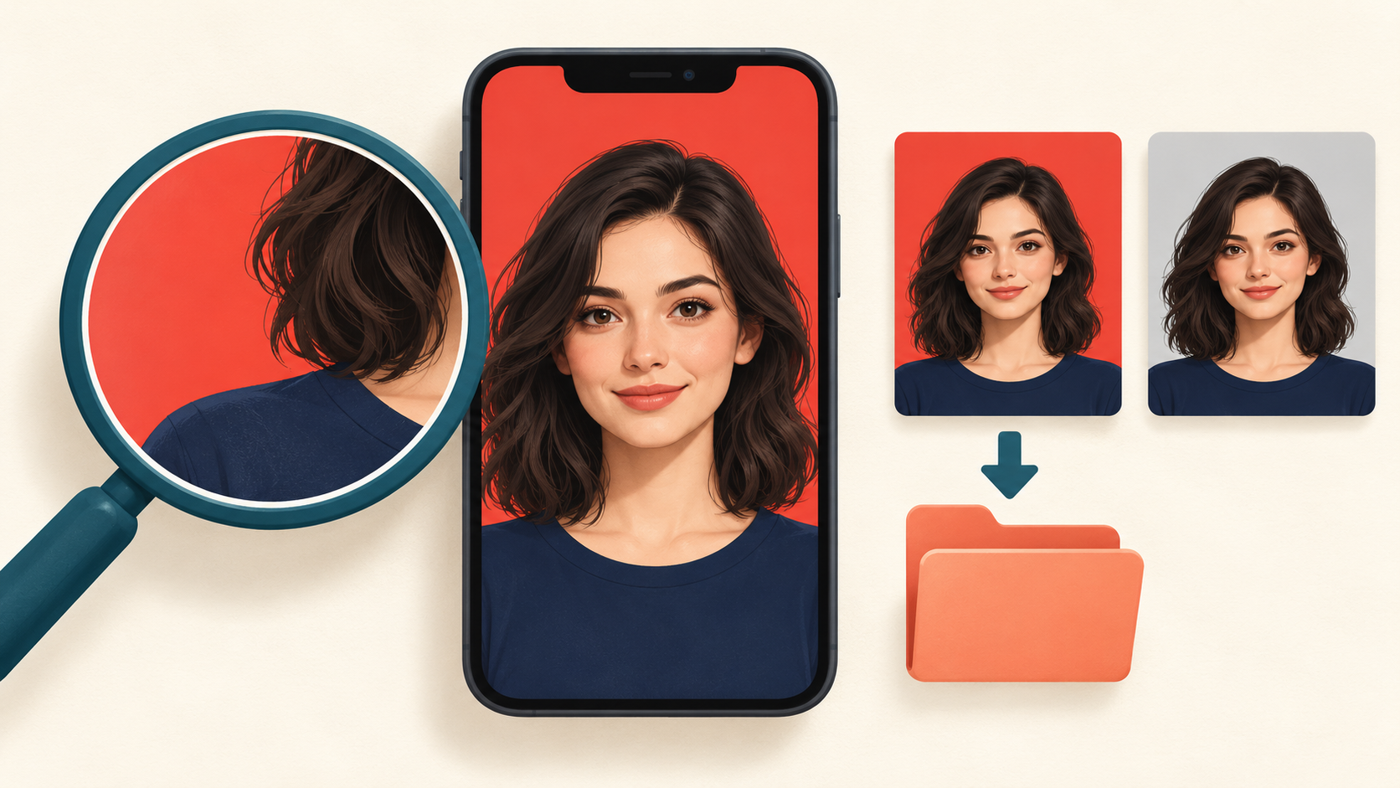
Zoom in around the hair and shoulders. A pale outline can reveal leftover background; missing strands or a clipped collar can make the cutout look harsh. If the tool offers edge refinement, make small corrections and compare them with the original. Otherwise, try a clearer source photograph or use an editor with suitable refinement controls.
Zoom back out as well. An image that looks tidy at high magnification may still be awkwardly framed as a profile photo. Check the balance above the head, the space beside the shoulders and the final crop. Do not stretch the portrait to fill a shape: crop with care instead.
Download the result as a separate file and reopen that saved file from your phone’s storage. Confirm the red background is present, the portrait is complete and the file matches the destination’s format and size requirements. Keep the original so you can make another version without repeatedly editing a compressed export.
If fine hair or a complicated outline still needs attention, prepare a short brief: the original photograph, the intended use, the requested colour and any file requirements. Shaniba Creative Industry’s online photo editing service includes background removal. You can discuss the image and instructions with SCI before deciding what work is appropriate.[7] Acceptance by a document issuer remains that issuer’s decision.
Useful references
[1] remove.bg: Add a red background
[2] remove.bg: Changing a background colour
[3] remove.bg: Mobile browser workflow
[7] SCI online photo editing service
[5] remove.bg: Move to Canva
Share this post to: