
Choosing Portraits Before Retouching: Build a Clear Shortlist
You have received a gallery of portraits, but choosing which files should move into retouching is proving harder than expected. One frame feels more approachable, another looks tidier, and a colleague prefers a third. A portrait shortlist before retouching turns those reactions into a clear decision: which file is selected, what it will be used for, and who has approved the choice.
A shortlist is a small set of candidates, not an instruction to edit every image on it. The aim is not to find the face that best matches somebody else’s tastes. It is to select a photograph that suits the intended use and that the subject is comfortable sharing. Keeping image selection separate from editing requests also avoids relying on “this one” messages scattered through a long conversation.
Daftar Isi
Give each selection a primary use
Start with where the portrait will appear. A company profile page may need space around the shoulders, while a speaker card needs a face that remains clear at a small display size. Write down that use before comparing expressions. One photograph can serve several purposes, but that does not mean the same crop will work everywhere.
Suppose you are preparing a consultant’s profile for a website and an event announcement. Record two separate needs: “website profile, vertical layout” and “event material, room for text”. These are hypothetical planning notes, not platform specifications. Ask the person placing the image for a sample layout or aspect ratio, then check whether the candidate still works within it.
Distinguish the main selection from alternatives, too. If you need one finished portrait, a list of ten unranked favourites leaves a decision unresolved. Identify a leading candidate and explain why, keeping a backup in case the crop or expression is unsuitable for the final layout. The number of photographs to be retouched still needs agreement; it is not determined by the length of your shortlist.
Compare expression and detail rather than filters
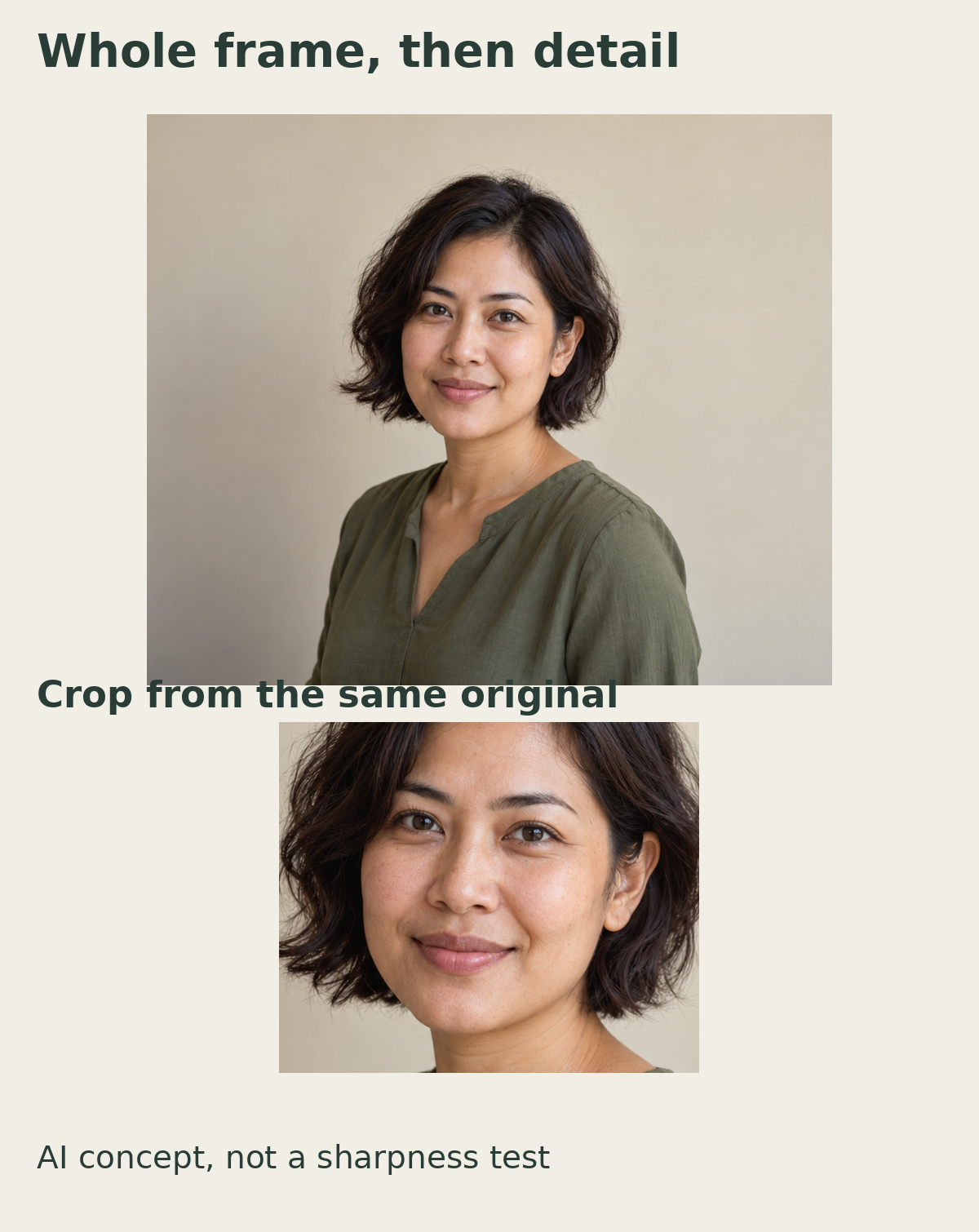
View the candidates side by side under comparable display conditions. Avoid judging one heavily filtered preview against another image without that treatment. When discussing expression, ask whether the subject is comfortable with the photograph and whether it fits the context. A broad smile or a serious look is not a universal measure of professionalism. The subject’s preferences and the communication need both matter.
After looking at the whole frame, open a sufficiently large file to inspect important areas such as the eyes, hair, clothing edges and visible distractions. Do not judge the final file’s quality solely from a messaging-app thumbnail. If you have only received small previews, ask for an appropriate review method before giving final selection approval. Enlarging a small image cannot restore detail that is not available.
Keep frame-selection issues separate from retouch notes. “Choose A017 because the expression suits the profile” is a different instruction from “tidy the stray hair across the forehead in A017”. If another frame already meets the need, consider selecting it rather than requesting extensive changes to make the first look similar. Choosing a photograph does not automatically authorize changes to facial shape, body shape or personal features.
If you use Lightroom Classic, flags, star ratings and colour labels can help organize your choices. Adobe also documents those markers in Compare and Survey views.[3] That software is optional: separate folders or a simple sheet can work as long as everyone understands the markers and can identify the exact filenames.
Separate candidates, backups and final selections
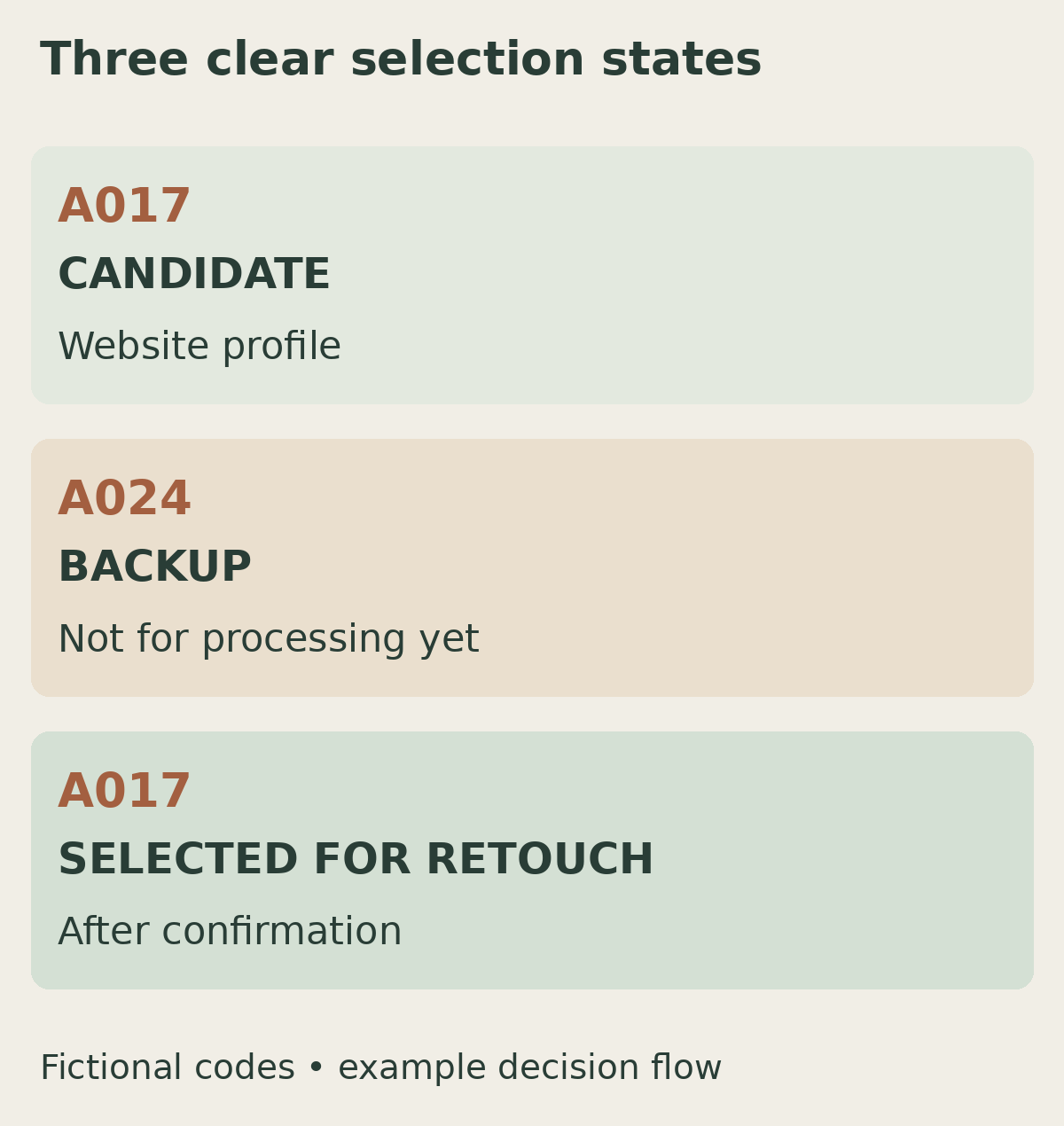
Use status labels that everyone understands. “Candidate” means an image is still being considered. “Backup” means it is an alternative, not yet an instruction to process it. “Selected for retouching” means the frame has been chosen for the agreed scope. This status confirms the image selection; it does not approve an edited result that has not yet been produced.
Use the complete filename as the identifier. If you send a screenshot with a circle around a face, include the file code in the accompanying text. Gallery positions can change, while chat copies may be compressed or reordered. A single reference list helps the photographer, editor, subject and project contact interpret the same choice consistently.
For example, a hypothetical list could read: A017 — leading candidate for the website profile; A024 — backup if the A017 crop is too tight; A031 — not selected. Once the decision is made, change A017 to “selected for retouching” and state whether A024 remains a backup. A star alone is ambiguous unless everyone has agreed whether it means favourite, reviewed or approved.
Confirm the list with the subject and decision maker
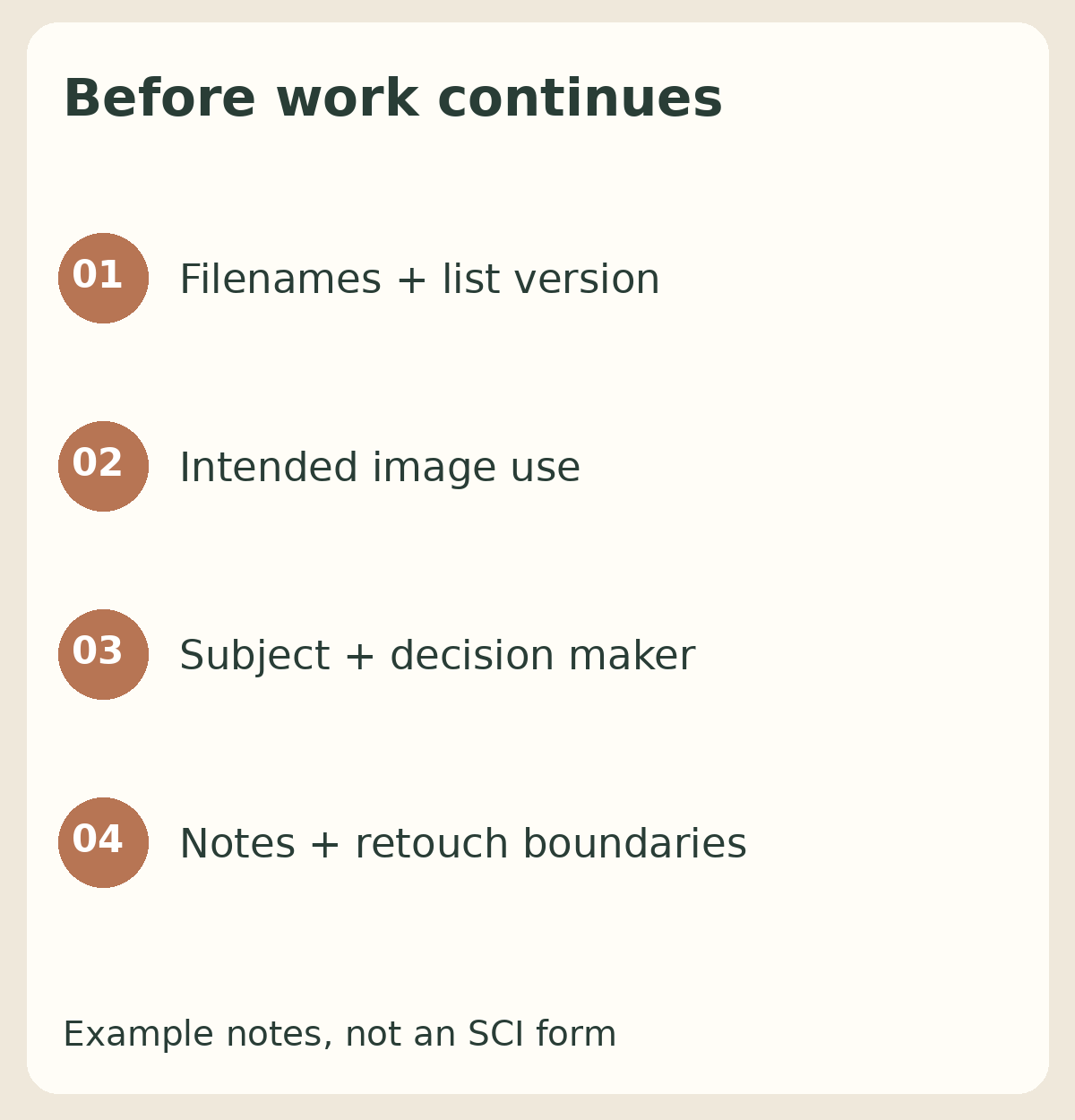
Before work continues, ask for confirmation against the same version of the list. The subject should know which photograph of them has been selected, while the person responsible for publication checks its suitability. When several people contribute, nominate someone to consolidate their decisions. Otherwise, “use A017” and “switch to A024” can reach the editor through separate conversations.
A confirmation can be short and specific: “List version 2: A017 for the website profile; A024 remains a backup and should not be processed yet. Please retouch according to the attached notes; no facial reshaping is requested. The edited result will be reviewed in the next preview.” Adapt that wording to your project. Usage rights, delivery formats, access to original files, fees and revision allowances remain subject to the service agreement.
For business portraits in Yogyakarta, you can discuss the intended visual direction through Shaniba Creative Industry’s portrait service (Indonesian). Its service page distinguishes plain-background portraits for simpler profiles from portraits built around a location concept.[1] Bring your intended uses, selected candidates and retouch boundaries when contacting SCI.[2] A clear list keeps that discussion focused without implying that every frame, alteration or file format is automatically included.
A useful portrait shortlist before retouching answers three questions: which photograph has been chosen, why it is needed, and what can happen next. Save those decisions with the list version rather than leaving them in memory or scattered messages. You can then review the retouched result later without reopening the entire image-selection decision.
References: [1] SCI — portrait service (Indonesian). [2] Contact SCI. [3] Adobe — flag, label and rate photos in Lightroom Classic.
Share this post to: