How to Give Photo Revision Feedback: File Names, Areas and Priorities
The edited photo is close to what you need, but something still feels off. “Please make it better” does not tell an editor what should change. Useful photo revision feedback identifies the file, the affected area, the desired outcome and the details that should stay as they are.
This guide focuses on reviewing images you have already received, rather than writing an initial editing brief. The aim is a clearer conversation, without assuming that every requested change falls within the same agreed scope.
Daftar Isi
Compare against the agreed brief
Before writing your notes, reopen the brief: the summary of requirements used as the reference for the job. Check the intended use, approved visual references, permitted changes and details that must remain intact. In a product photo, for example, packaging colour, label text and the shape of the item may be important reference points.
Look at the whole image first, then examine details at a size appropriate to its intended use. Separate general impressions from specific problems. “The background feels too dominant” is a composition concern; “the lettering on the label has changed” identifies a detail that can be compared with a reference file. Those observations call for different instructions.
If colours look different on two screens, describe the device or viewing setup and provide the reference file. Do not immediately treat a screen difference as proof that one version is wrong. Ask the editor to compare the relevant area against the agreed reference, rather than simply matching the appearance of one screenshot.
Identify the file and exact area
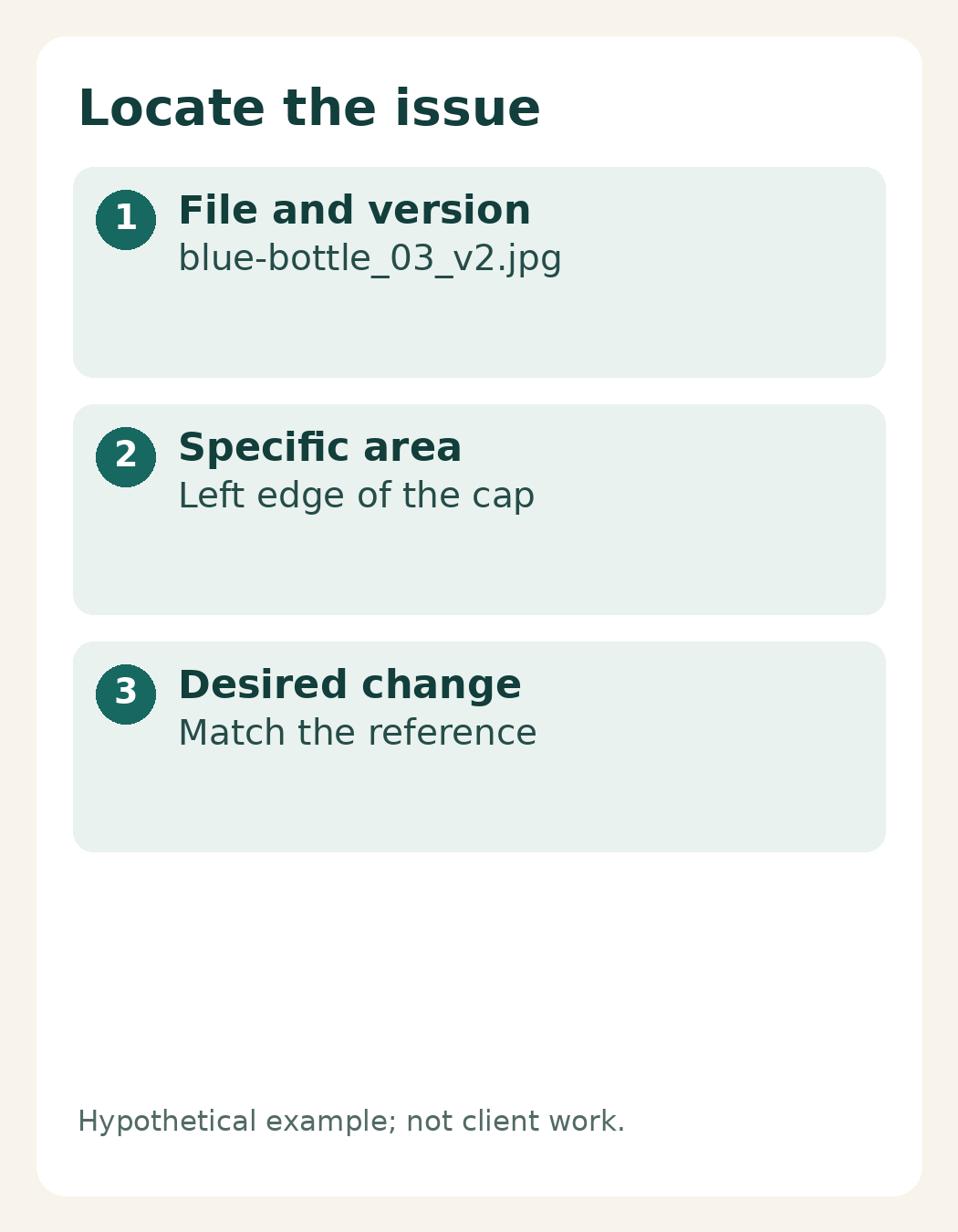
Start each note with the complete file name and the version you are reviewing, such as blue-bottle_03_v2.jpg. This is a hypothetical example. If you receive several versions, avoid renaming one “the latest photo”: messages can appear in a different order on the recipient’s device.
Next, locate the issue: “left edge of the cap”, “shadow at the bottom right”, or “second line on the label”. Describe left and right from the viewer’s perspective. For a small detail, send the full view plus a marked close-up; a crop alone may remove the context the editor needs.
Keep circles and arrows clear of the detail being assessed. Save your annotated review copy separately from the original. If you use a review tool, a pinned comment can connect a note to a particular area; Adobe documents this feature in Photoshop and Creative Cloud.[1][2] It is an optional way to communicate, not a requirement to use a particular application or a claim that SCI uses those systems.
Separate corrections from new requests
A correction brings the result back into line with the agreed reference. For example, the label should match the source file, but a letter has changed in the review version. Identify the source and the exact comparison so the editor can understand the difference you mean.
A change of direction introduces a new request, such as replacing an approved plain background with a café setting or adding an object that was not in the brief. You can discuss these ideas, but do not treat them as equivalent to correcting a detail. Ask about feasibility, scope, cost and timing before requesting implementation.
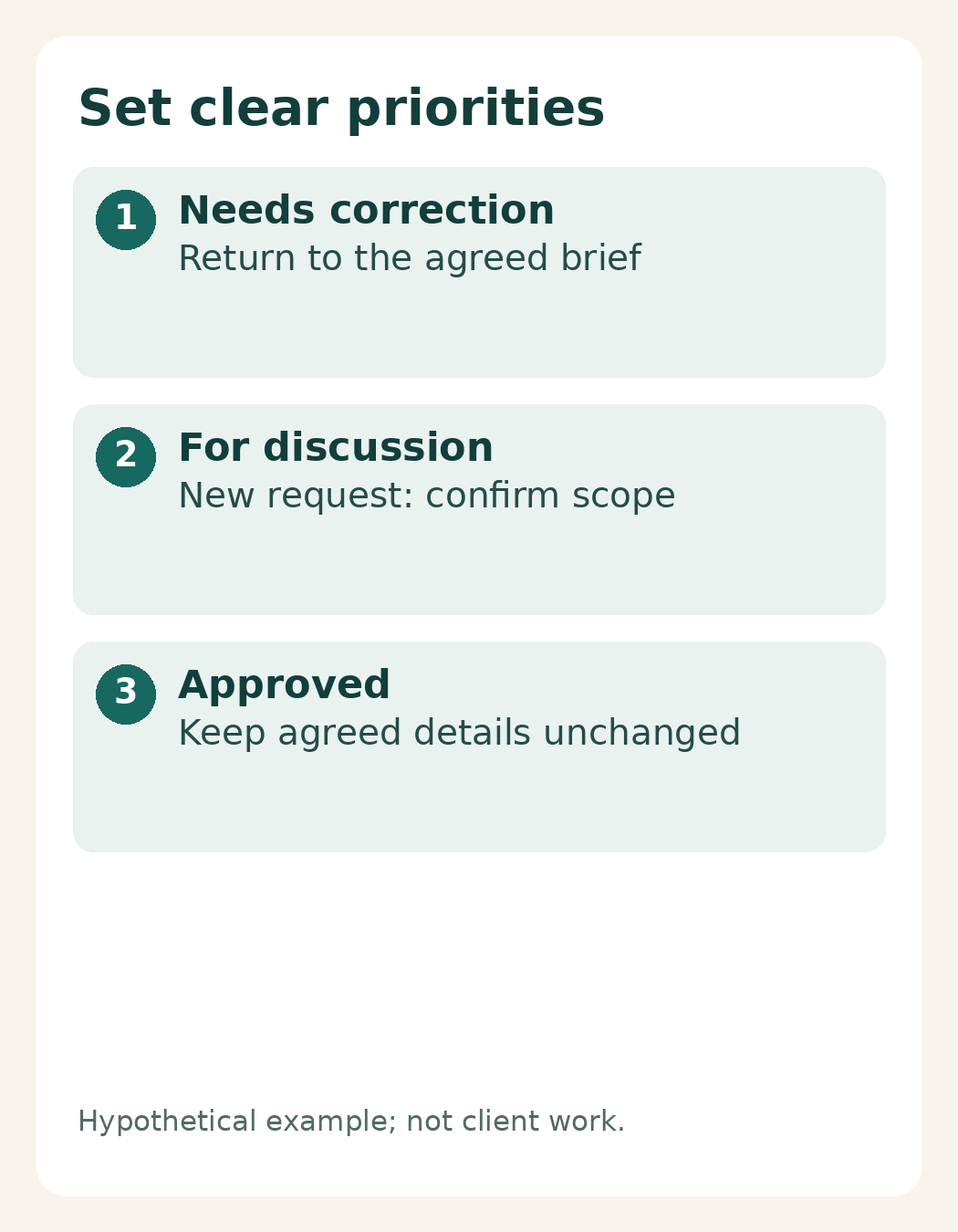
Use straightforward priorities: needs correction, for discussion, and approved—keep unchanged. Priorities show which decisions matter most; they do not make other notes irrelevant. If several people are reviewing, reconcile conflicting comments before sending the consolidated list.
Positive notes are useful too. “The lighting and product position are right; please keep them” limits the revision to what actually needs attention. You do not need to prescribe a technical solution. Explain the problem and the visual goal rather than choosing the retouching tool or method for the editor.
An actionable photo revision feedback example
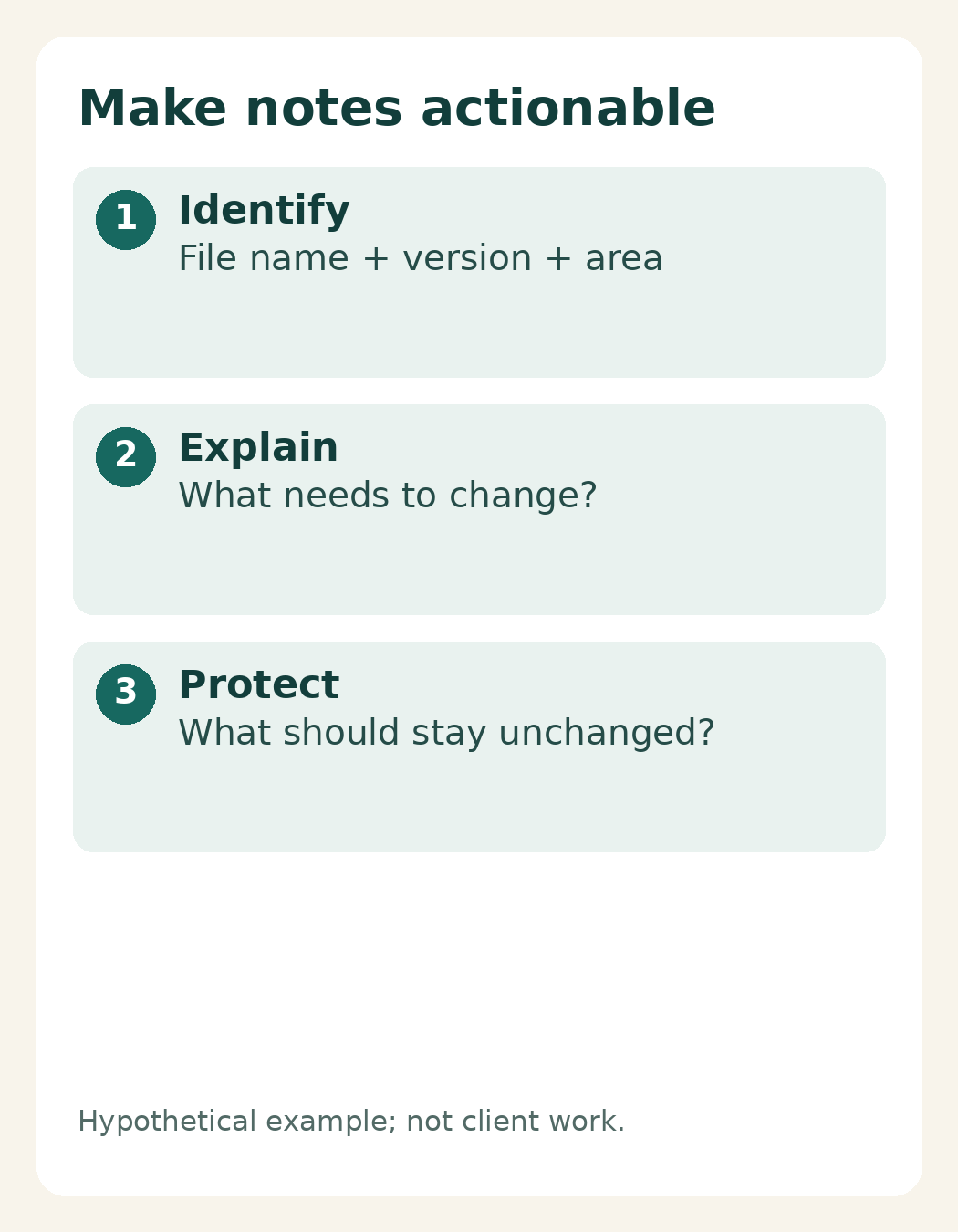
This is a hypothetical example, not an SCI project or package term: “blue-bottle_03_v2.jpg — needs correction: the left edge of the cap has a bright mark that is absent from the reference file. Please match that area to the reference. The cap shape, bottle texture and overall lighting are approved; keep them unchanged.”
Compare that with “the bottle still looks strange”. The first note identifies the file, location, reason, intended correction and limits. For a new idea, you could write: “For discussion: could we replace the background with a wooden tabletop? This differs from the original brief; please confirm the scope first.”
Send a structured list through the agreed channel instead of a series of messages that contradict one another. For a team project, decide who will submit the combined decisions. When a revised version arrives, check it against the same list and mark what is complete, what needs clarification and what is no longer requested.
The Shaniba Creative Industry online photo editing service page describes an online review and revision stage.[6] Confirm the number of rounds, costs for changes and schedule for your particular job. Prepare file names, marked examples and a priority list, then discuss your revision needs with SCI.[4] Clear notes help establish a shared understanding without promising a particular result or turnaround time.
References
[1] Adobe: Share your documents for review. [2] Adobe: Comment on shared files. [6] SCI: Photo Editing and Restoration. [4] Contact SCI.
Share this post to: