Photo Enlargement: Resize Images with Realistic Expectations
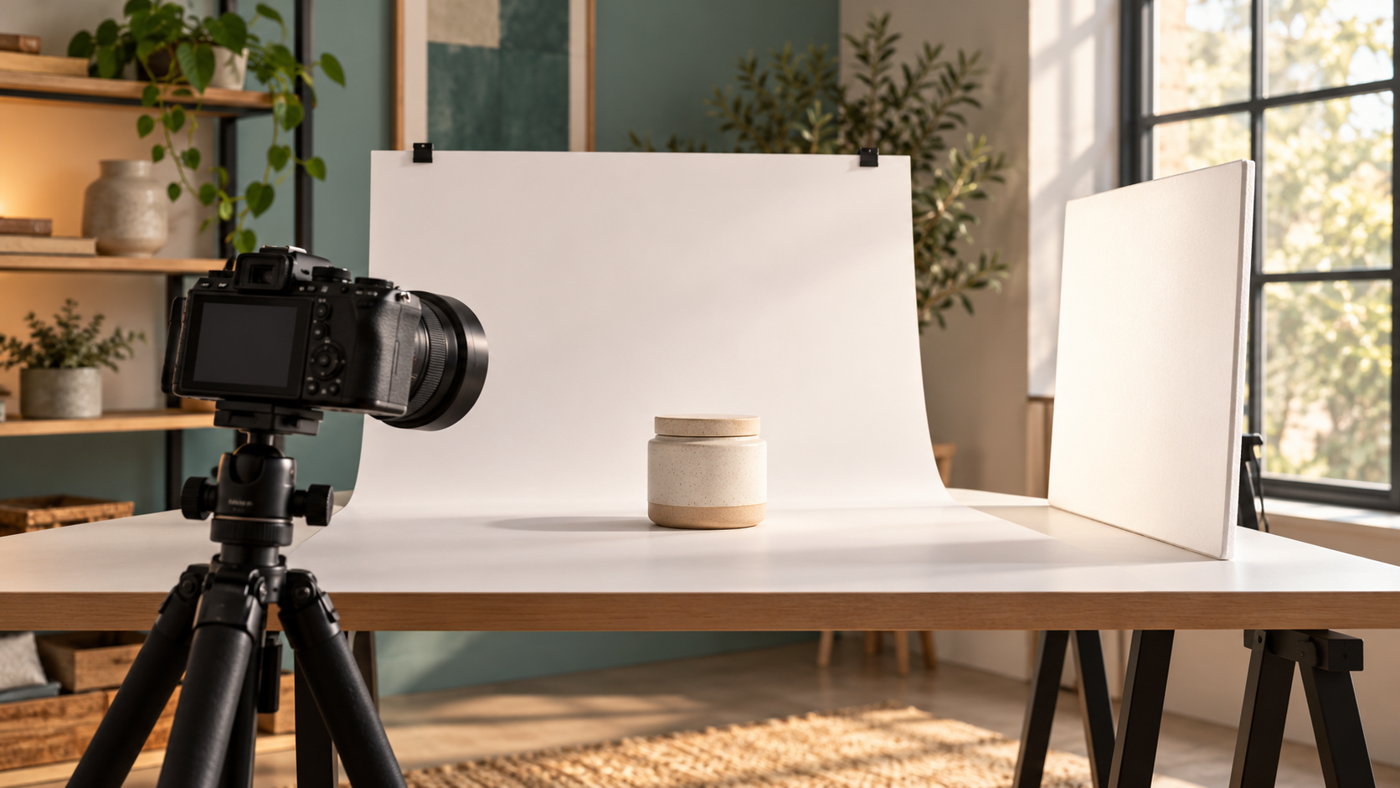
Photo enlargement is useful when a favourite portrait or product image is too small for its next destination. But making a file heavier is not the same as adding useful detail. Start with the largest original you have, decide where the image will appear, and judge the enlarged version at the size people will actually see.
A compressed messaging-app copy may be convenient to share, yet a camera original or earlier high-quality export is usually a better starting point. Keep that original untouched. Work on a separate copy so you can compare results and change your approach without repeatedly overwriting the source.
Daftar Isi
Photo enlargement starts with the right measurements
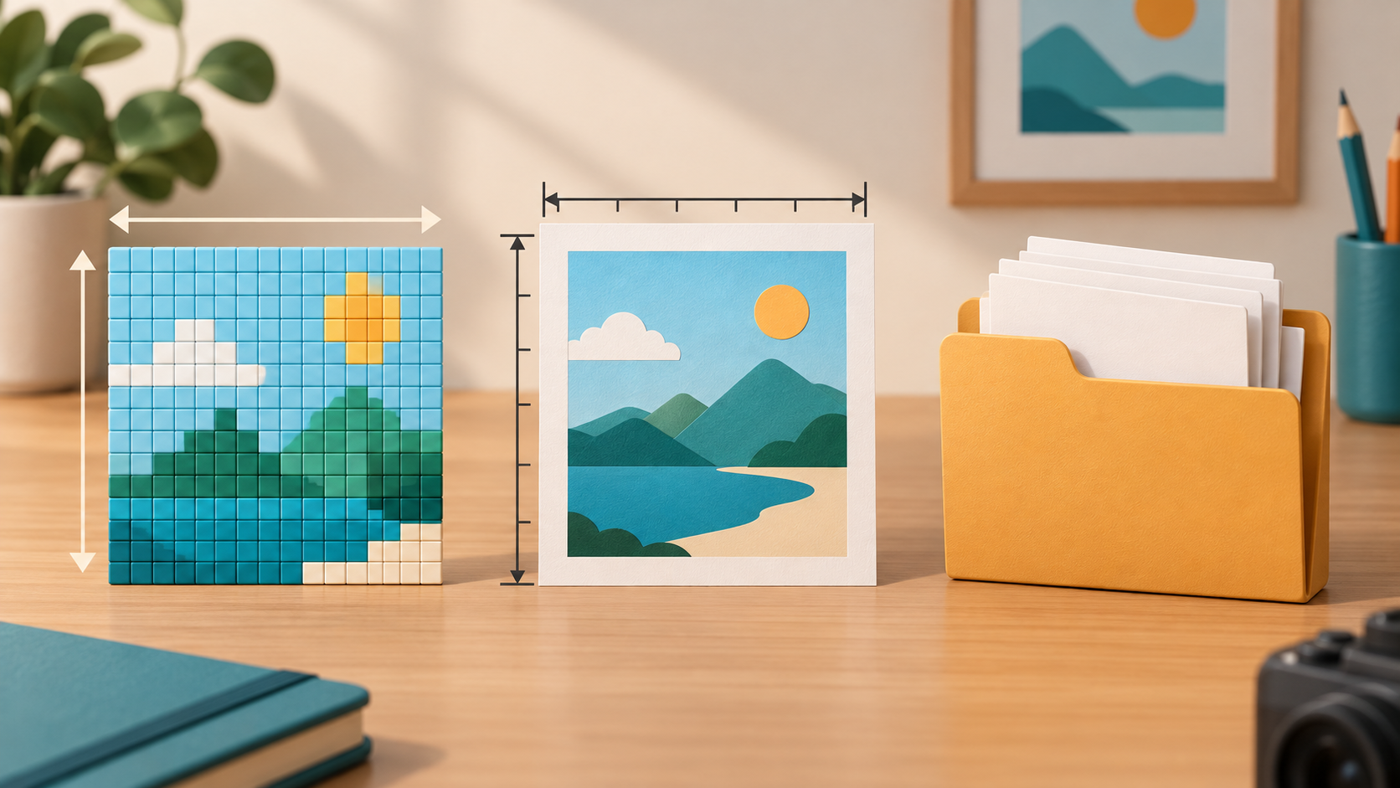
Three measurements often get mixed together. Pixel dimensions describe the image’s width and height in pixels. Print size describes its physical dimensions on paper. File size in kilobytes or megabytes describes storage, which also depends on format, compression and the image itself.
For print, pixels per inch (ppi) connects pixel dimensions to physical size. Changing the ppi setting without resampling does not create extra image pixels. It changes how densely the existing pixels are assigned to the print. Ask your printer for the required dimensions, resolution and file format rather than assuming one setting suits every output.
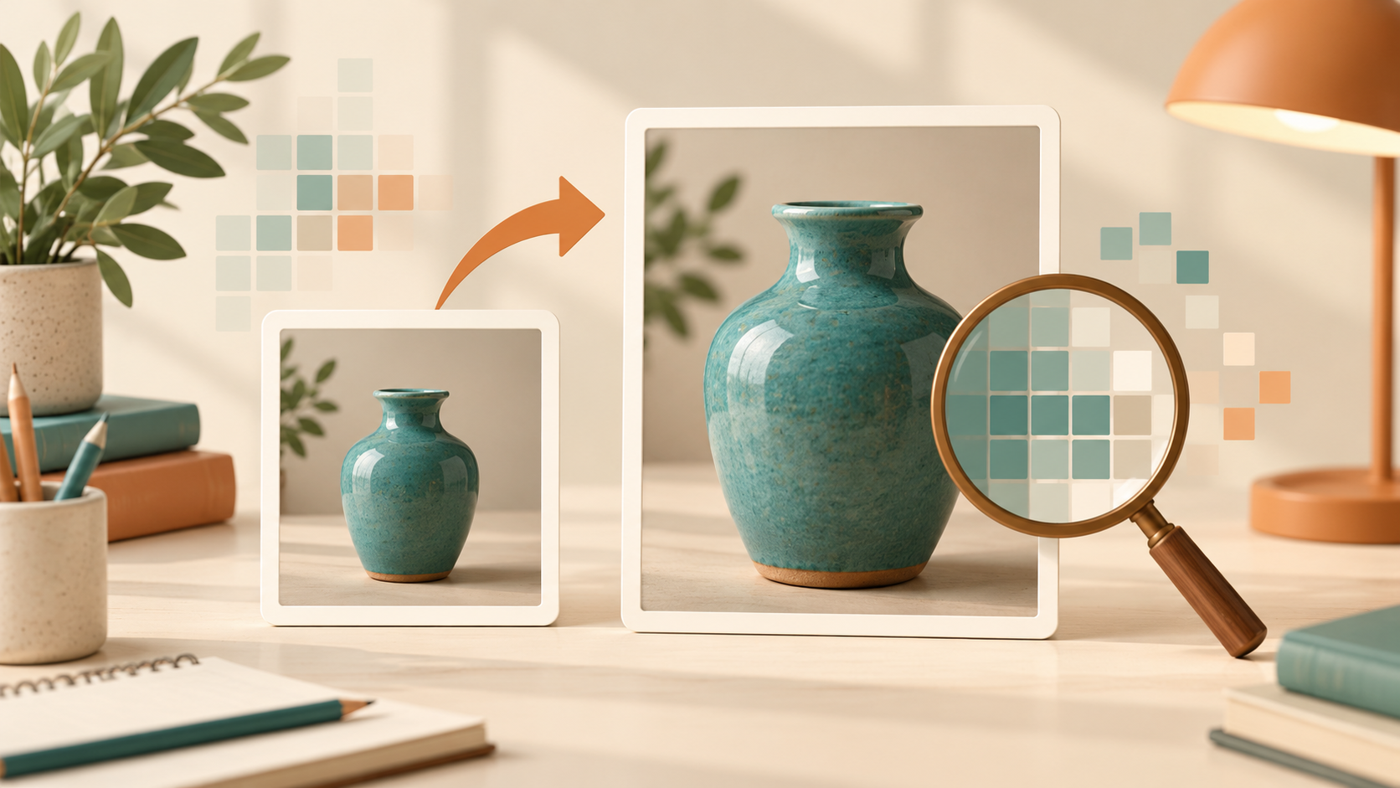
Resampling is different: it adds or removes pixels. When an image is enlarged, software has to estimate the additional pixel information. A larger pixel count can make a file more suitable for a particular layout, but it is not proof that missing original detail has been recovered. Adobe’s Image Size guide explains the controls for dimensions, resolution and resampling.
Resize a copy, then compare the result
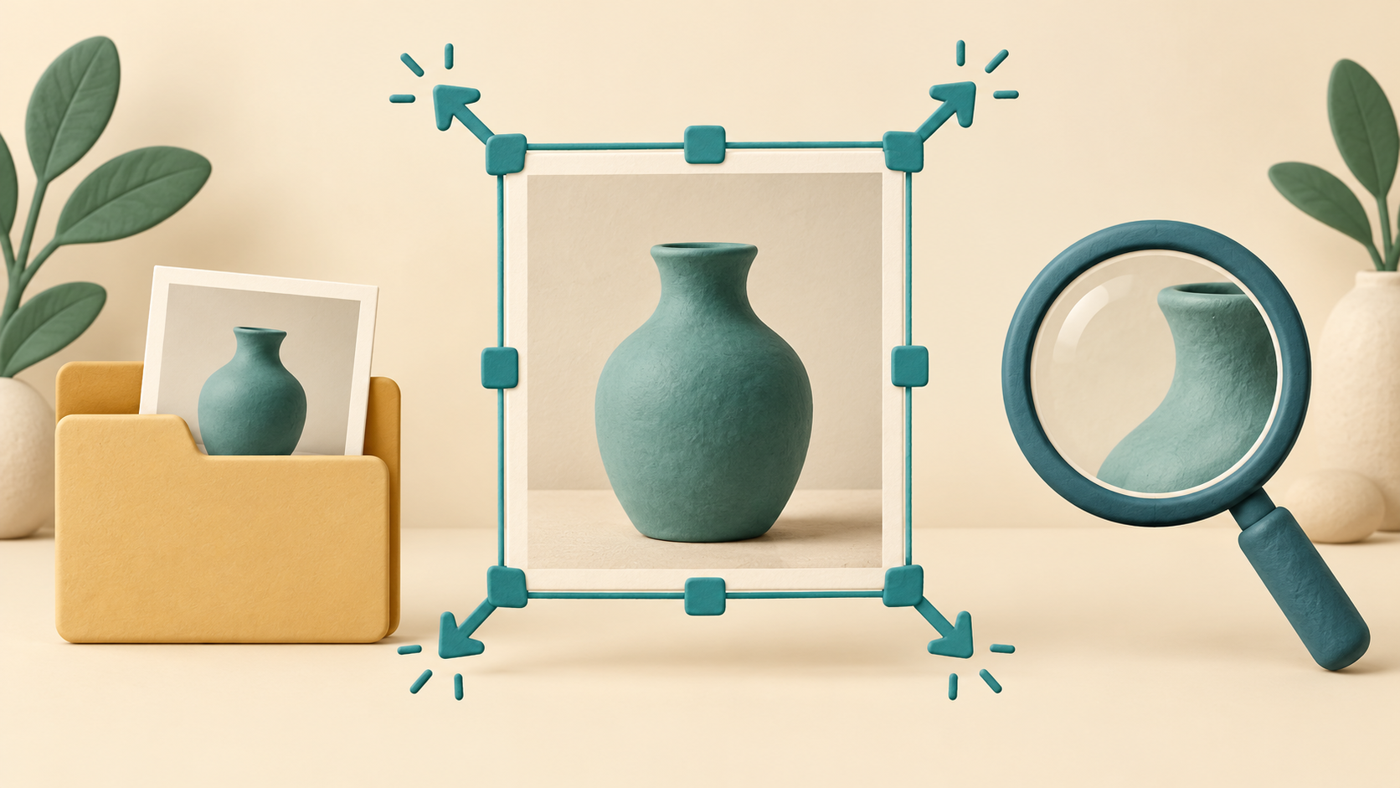
In Photoshop, open Image > Image Size. Check the existing dimensions first, keep the width and height proportions linked, and enter the dimensions needed for the intended output. If you need more pixels, review the Resample setting and its available method. Use the preview to inspect an important area before committing.
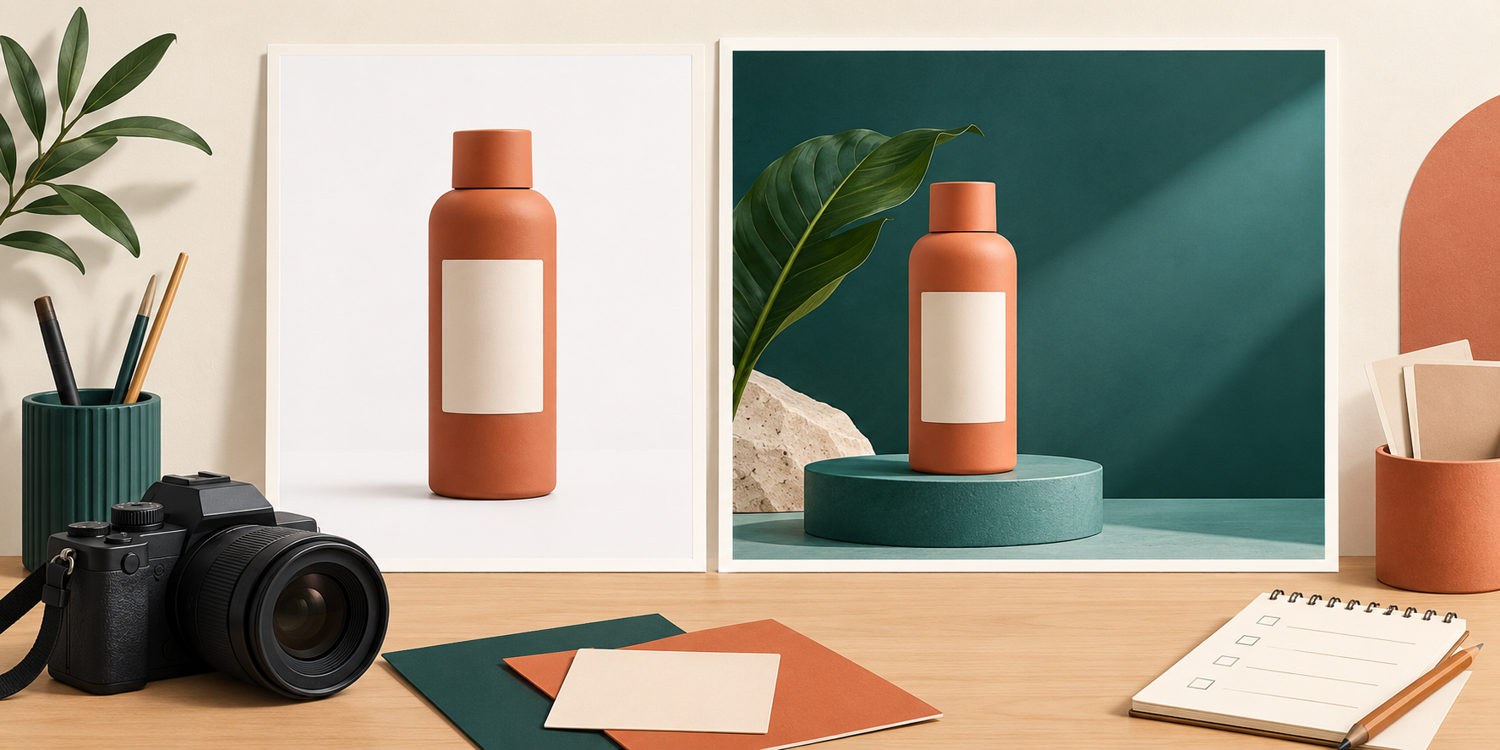
For a catalogue photo, that area might be the product label or a fine edge. For a portrait, examine eyes, hair and skin texture. Choose settings that preserve a believable appearance rather than the strongest-looking sharpening. Enlarging a blurred image and adding aggressive sharpening can make its defects more obvious instead of making it more useful.
AI-assisted enlargement is another option, not a guarantee. Adobe Camera Raw’s Super Resolution doubles width and height, producing four times the total pixel count. Its documentation also lists file and workflow limitations. Treat the output as a version to evaluate, especially where small writing, logos or recognisable facial detail must stay accurate.
If you use an online tool, consider the image as well as the upload. Check its privacy and retention terms before sending personal portraits, unreleased products or other confidential material. Do not assume that a convenient free upload is appropriate for every photograph.
Check the destination, not just the zoom slider
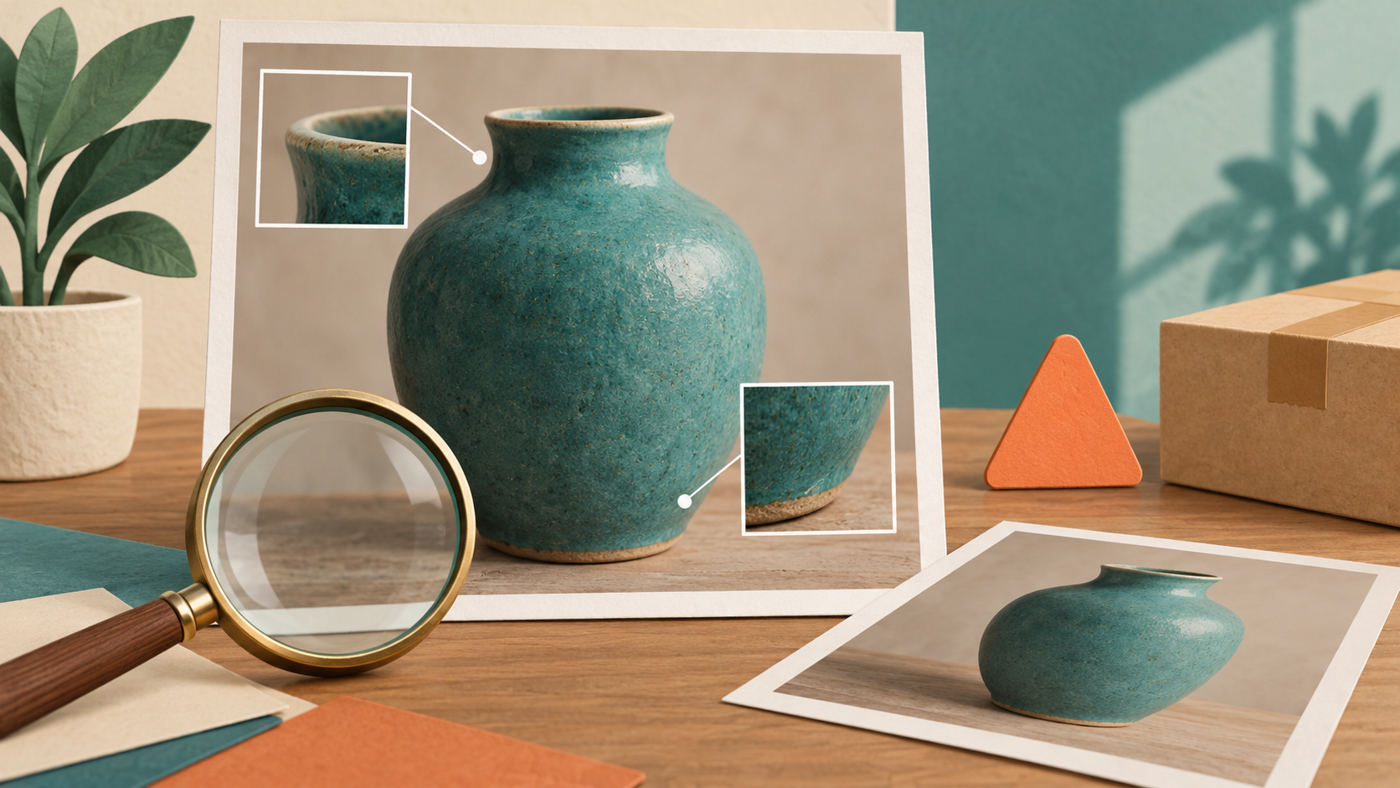
Inspect the enlarged file at 100% to look for halos around edges, smeared texture, blocky compression and altered lettering. Then view it at the intended display or print size. Both checks matter: a file that seems acceptable when fitted into a small window may show problems in a larger layout.
Keep the comparison fair by using the original and enlarged copy of the same image. For important printed work, ask whether a proof or representative crop can be checked before the full run. For a website or marketplace, confirm the platform’s dimensions and file-size limits, then inspect the uploaded result rather than only the local export.
Export a separate delivery file in the format the destination requests, and retain the original and working version. Avoid repeatedly saving a JPEG through successive editing stages. If the result still looks unconvincing, a smaller placement, less severe crop or replacement photograph may serve the project better than another round of enlargement.
When requesting help from Shaniba Creative Industry’s online photo editing service, send the best available source and explain the final use, required dimensions and details that must not change. Ask for a realistic assessment before committing to a large print or final layout. A clear output brief is more useful than simply asking for “more megabytes”.
Illustrations: AI-generated concepts, not software screenshots, SCI client projects or demonstrated enhancement results.
Share this post to: