
Capture One 16.9.1: Match Product Photos with Barcodes
Two nearly identical packs can represent different variants in a catalogue shoot. Even a sharp photograph creates extra work if it is assigned to the wrong product. Capture One 16.9.1 introduces a relevant change: barcode and QR code detection during tethered capture, when the camera sends new photographs directly to a connected computer.
Released on 18 November 2026, the update can read a code in a newly captured tethered image and make its value available to the naming workflow. It does not create a product barcode. For a brand preparing a shoot, the useful consequence is a clearer connection between the supplied product list and the resulting images—not a reason to hand every identity check over to software.
Daftar Isi
Capture One 16.9.1 connects a visible code to the workflow

Capture One describes a new tickbox in its Barcode tool that searches for barcodes and QR codes in new captures. When a code is found, the barcode field fills in as it would after a scan with a separate scanner. Its value becomes available through the Barcode token: a placeholder that inserts a particular piece of information into a file-naming rule.
Consider a hypothetical shoot with two soap cartons of the same size but different scents. The brand supplies a list connecting each variant to its code. Reading the code can help associate a capture with that list. Someone still needs to check that the photographed carton, the listed identity and the packaging version agree. A successfully read number does not establish that the label is attached to the correct item.
An overlay in tethering Live View shows where the software detects a code. Detection also works when the Live View window is closed. Those are the announced capabilities; how the team handles the resulting values should still be agreed before the shoot. A naming convention is most useful when everyone reviewing the files understands it.
Three limits to settle before a product shoot
First, detection works on tethered images during capture, not on imported pictures. If you are sending an existing photo archive for editing or organisation, do not assume this update will read every barcode in it. Matching older files to products remains a separate requirement to discuss using the product list and filenames you already have.
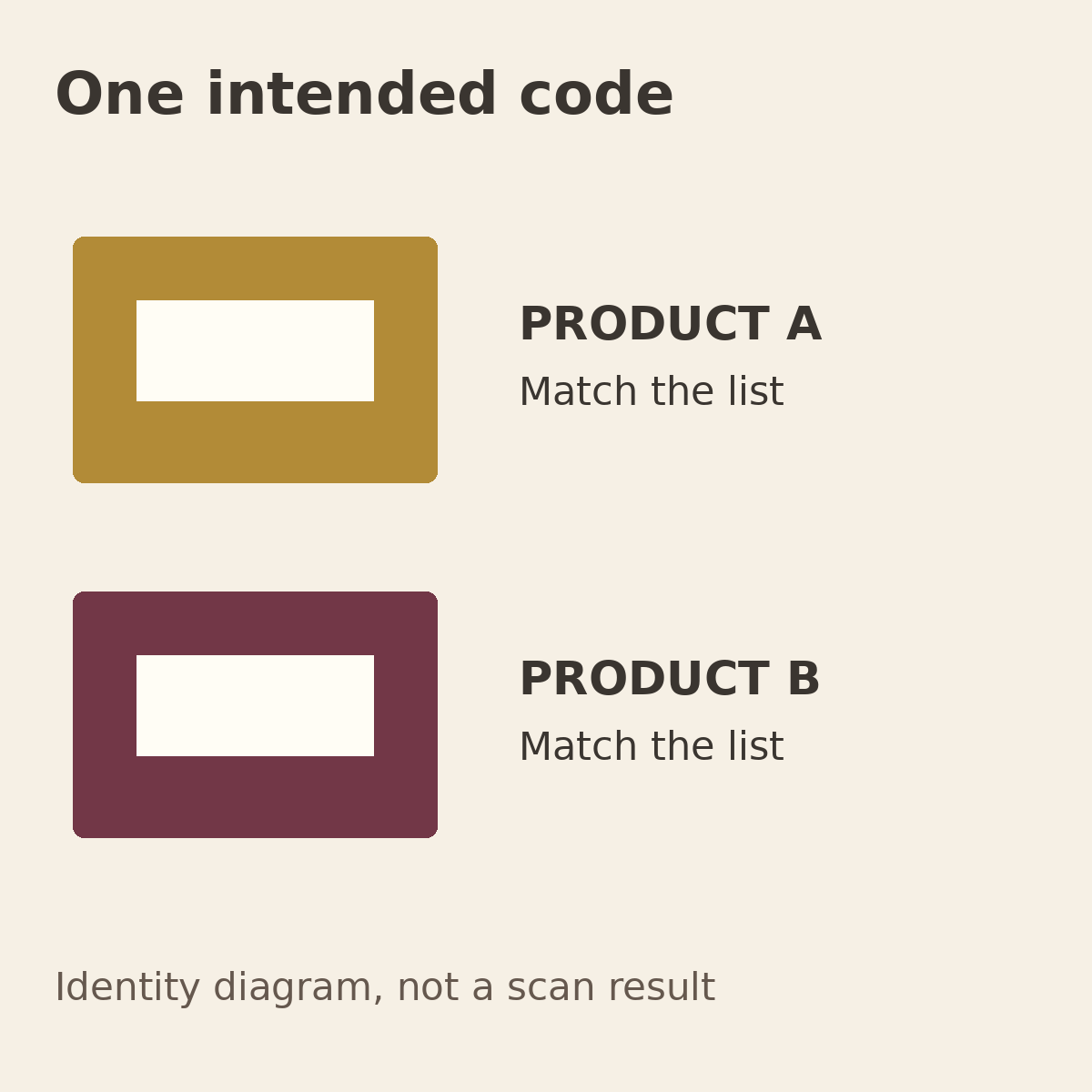
Second, the application picks up only one code when an image contains several. A pack might carry a retail barcode and a QR code linking to further information. Identify the intended code in the working list rather than assuming the software will choose the one your catalogue needs. A group photograph also needs a clear set identity; a code belonging to one item does not describe the whole arrangement.
Third, barcode detection is available in Studio for Enterprise on macOS. It is not automatically included with every Capture One plan or available on Windows. This distinction matters when briefing a service provider. Ask how products will be identified and checked, rather than asking only whether a familiar software brand is installed.
Reading a code is also different from validating stock, confirming barcode registration or checking marketplace information. Your shot list still needs to state the variant, required views and intended use. One item might need front, back, label-detail and group photographs; its identifier cannot replace those instructions.
Prepare a list both sides can review
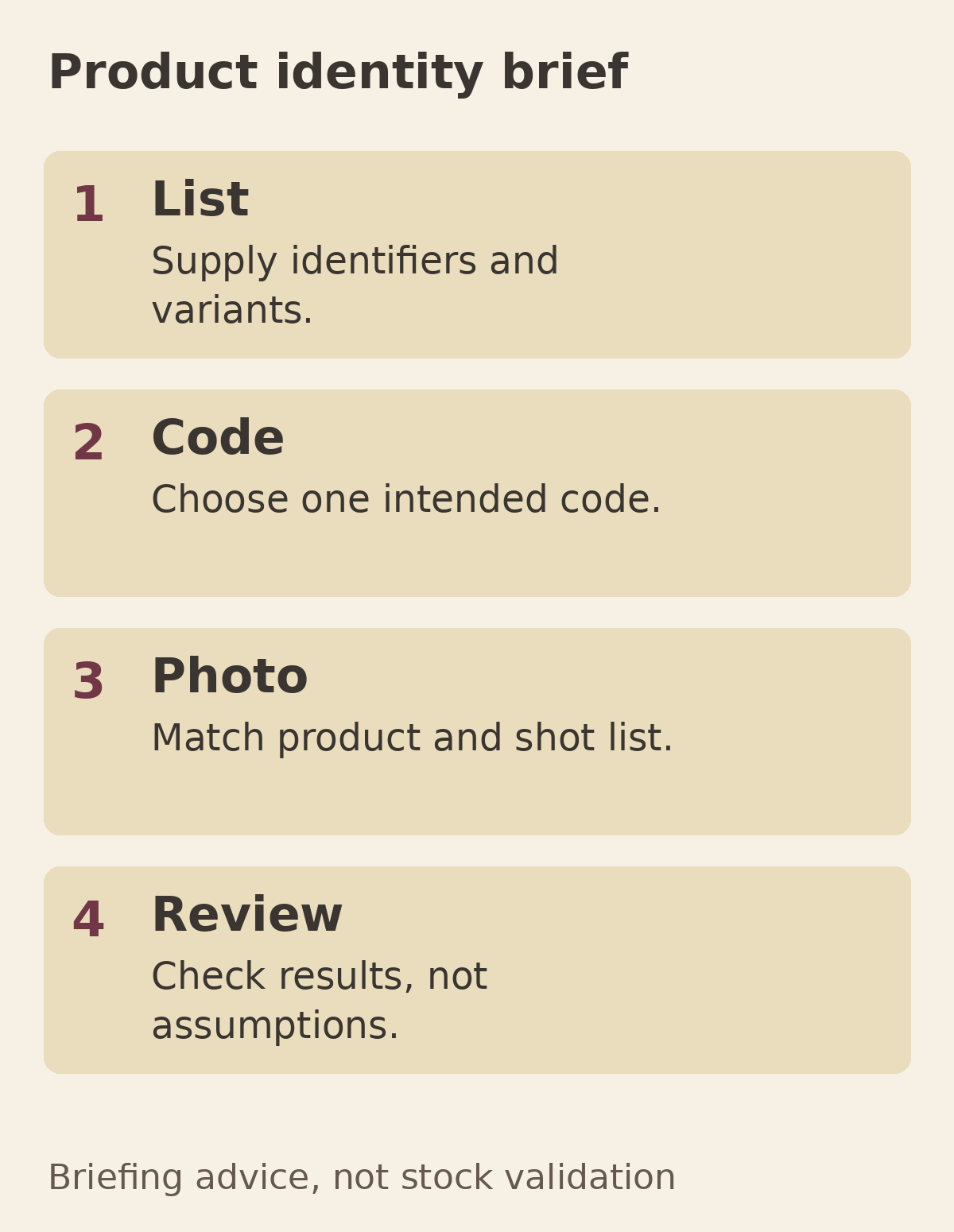
Build the product photography brief around one main list linking identifiers, variants and required images. Include the expected code if code reading will be part of the agreed method. If products have no codes, agree another working identifier with the provider. Do not add an unexplained code simply to accommodate a new software feature.
When preparing items for shipment, match the contents against the list. Make clear which pieces belong to one set, which variants must be photographed separately and which packaging version is current. An old carton and a redesigned carton may share a product identity while requiring different photographs. A version note helps prevent the older pack becoming the final visual reference.
During review, check the relationship between the list and the images, not just the total file count. Does every variant have the requested views? Do label details match the approved physical item? Has a group image been mistaken for a single-product image? These questions remain useful when a shoot uses manual filenames rather than automatic code detection.
For product photography with Shaniba Creative Industry, include your identifier list and required views in the initial discussion. The linked service page is in Indonesian. Use the SCI consultation channel to explain the materials you can supply and the images you need. A particular application does not have to be the starting requirement: an understandable connection between products and pictures is more useful for your approval process.
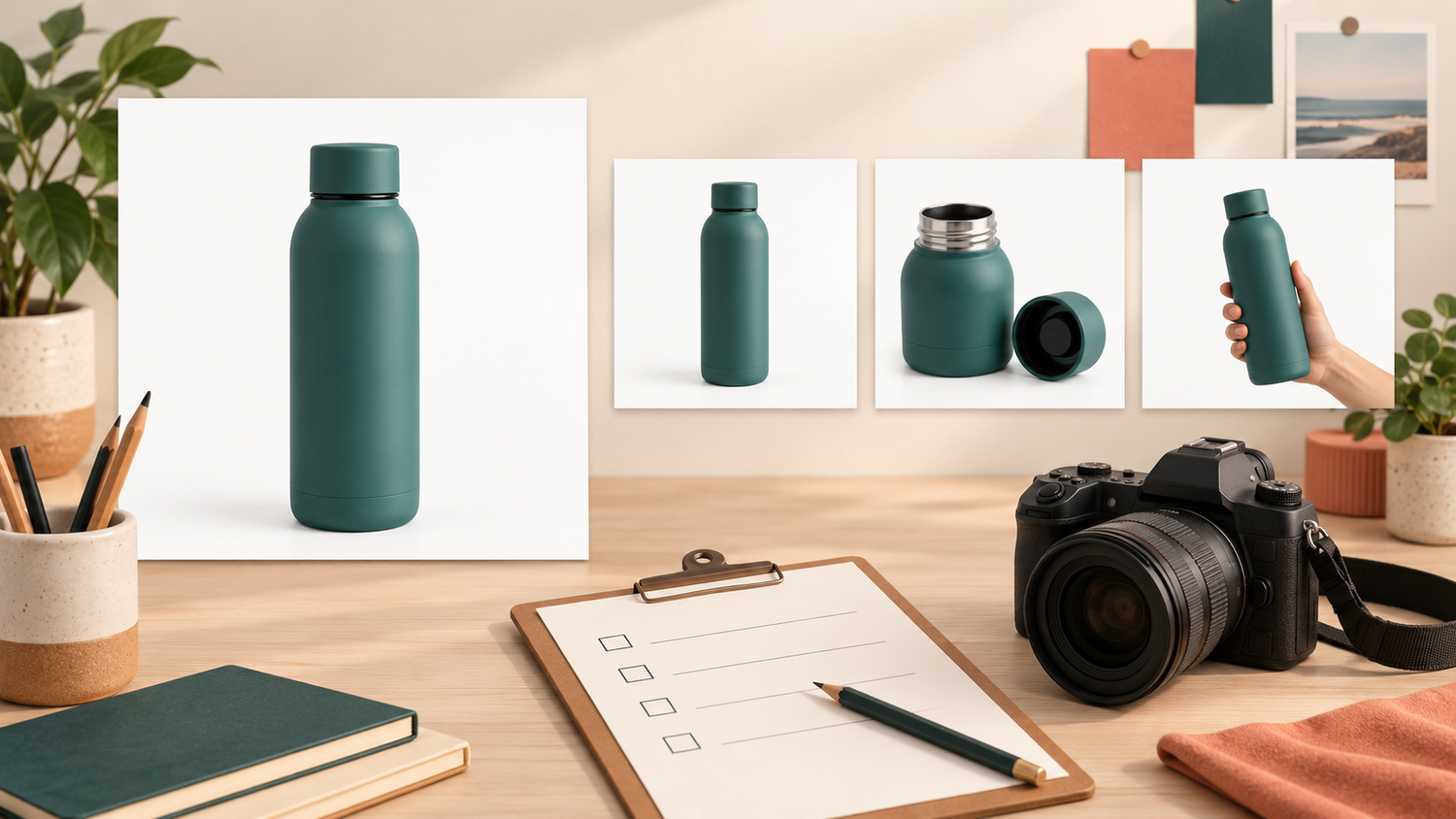
Reference: Capture One 16.9.1 release notes. Packaging visuals are AI concepts and explanatory diagrams, not client products, scan results or application screenshots.
Share this post to: