Capture One 16.9 Final: Color, Retouching and File Backups
Product colors that need to follow a brand reference, hair that should still look natural, and older working files shared by a team call for different decisions. Capture One 16.9, released on October 29, 2026 according to its official release notes, adds color and retouching controls alongside an important Session and Catalog upgrade requirement. For clients preparing product photographs or portraits, this final release is a useful reason to clarify the brief and protect working files before editing begins.
This is the final release, not the earlier 16.9 beta announcement. That does not mean every feature inside it has left beta: Assisted Review is still labeled Beta. Focus on the changes relevant to your photographs rather than making a software version number the centerpiece of a service request.
Daftar Isi
Capture One 16.9 adds RGB and HSL color targets
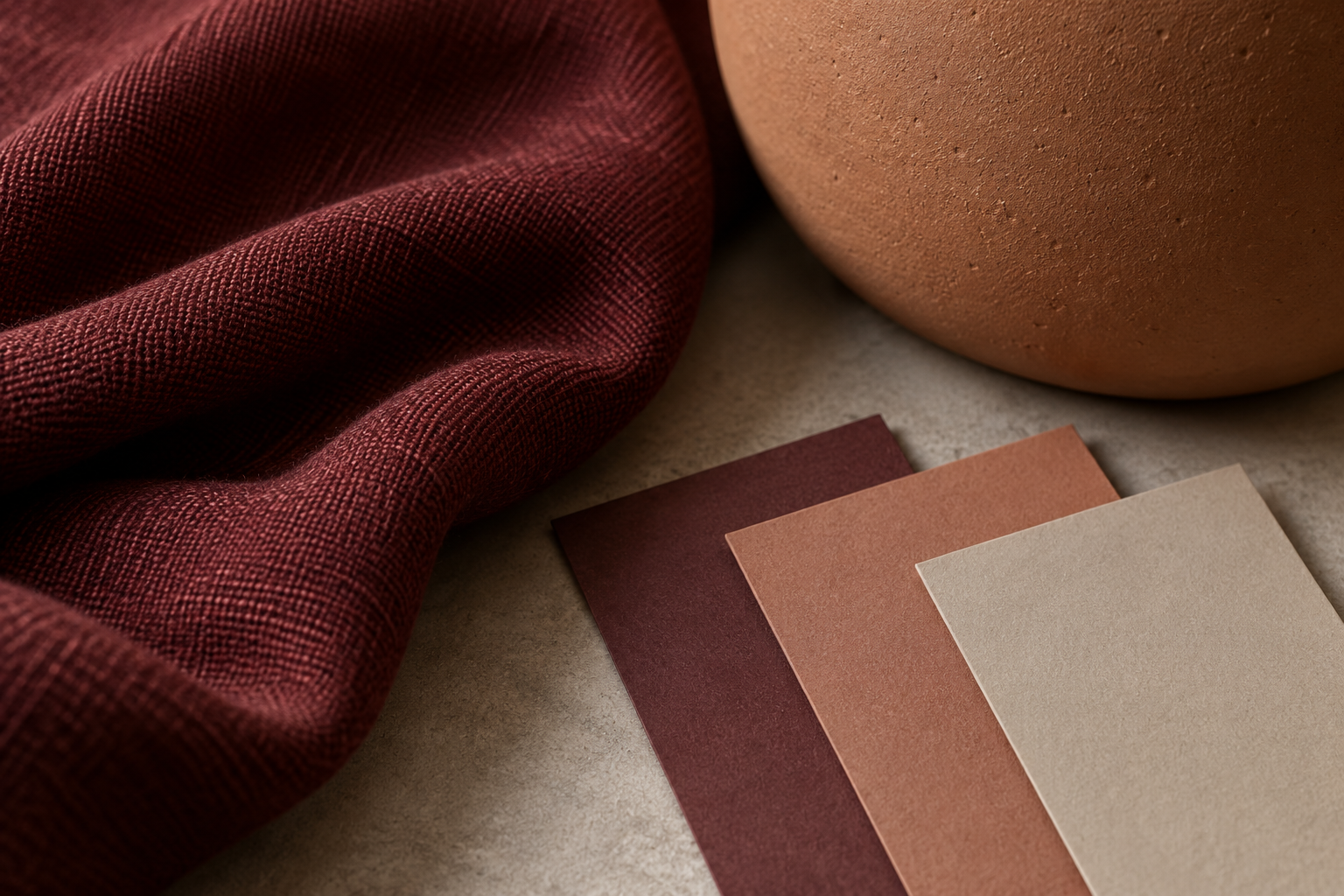
The Advanced Color Editor now accepts typed RGB or HSL target values for matching reference colors, including brand and product colors. RGB describes red, green and blue components; HSL describes hue, saturation and lightness. A Target picker can also take a reference from an object in the same image or another image. When using a different image, both images need to be selected in the Viewer.
Uniformity controls, previously in the Skin Tone tab, are now available in the Advanced Color Editor to make variations within a selected color more even. A redesigned color wheel also expands control over recoloring part of an image. These are additional editing controls, not a reason to change the identity of a product that needs to be represented honestly in a catalog.
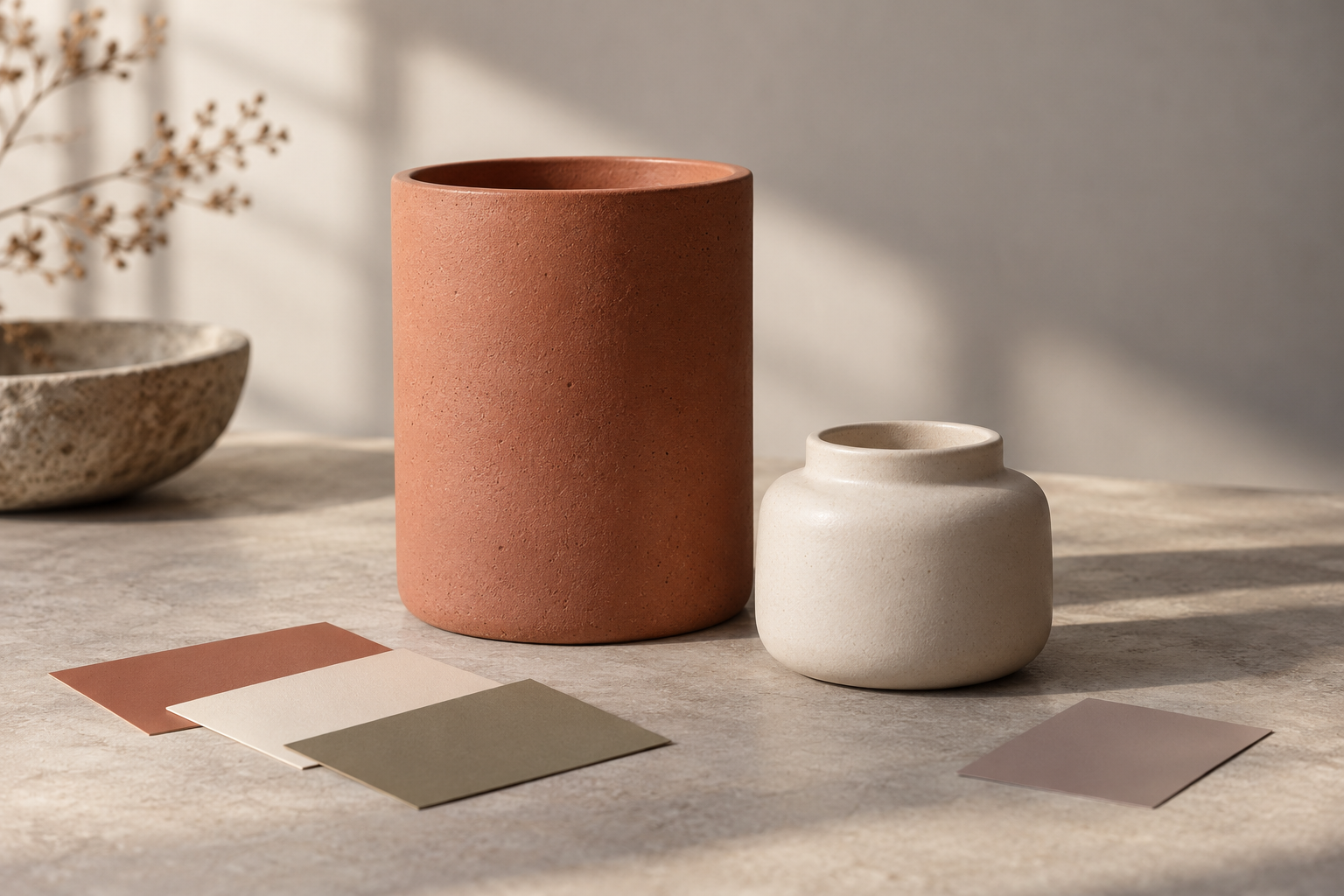
Provide a color reference with its context in your brief. In a hypothetical ceramics brief, a brand might specify that terracotta packaging is the color reference while the ceramic surface must retain its texture and reflections. If you supply RGB values, identify the original file or brand guidance and the intended output rather than sending three unexplained numbers.
A target value does not by itself guarantee an identical appearance on every screen, print or lighting setup. Distinguish aligning the photograph’s color from changing the product’s color, and approve one sample before applying the direction across a series. Background, lighting and product shape remain important parts of a commercial photography brief even when the editing tools offer more control.
Agree on skin and stray-hair retouching boundaries
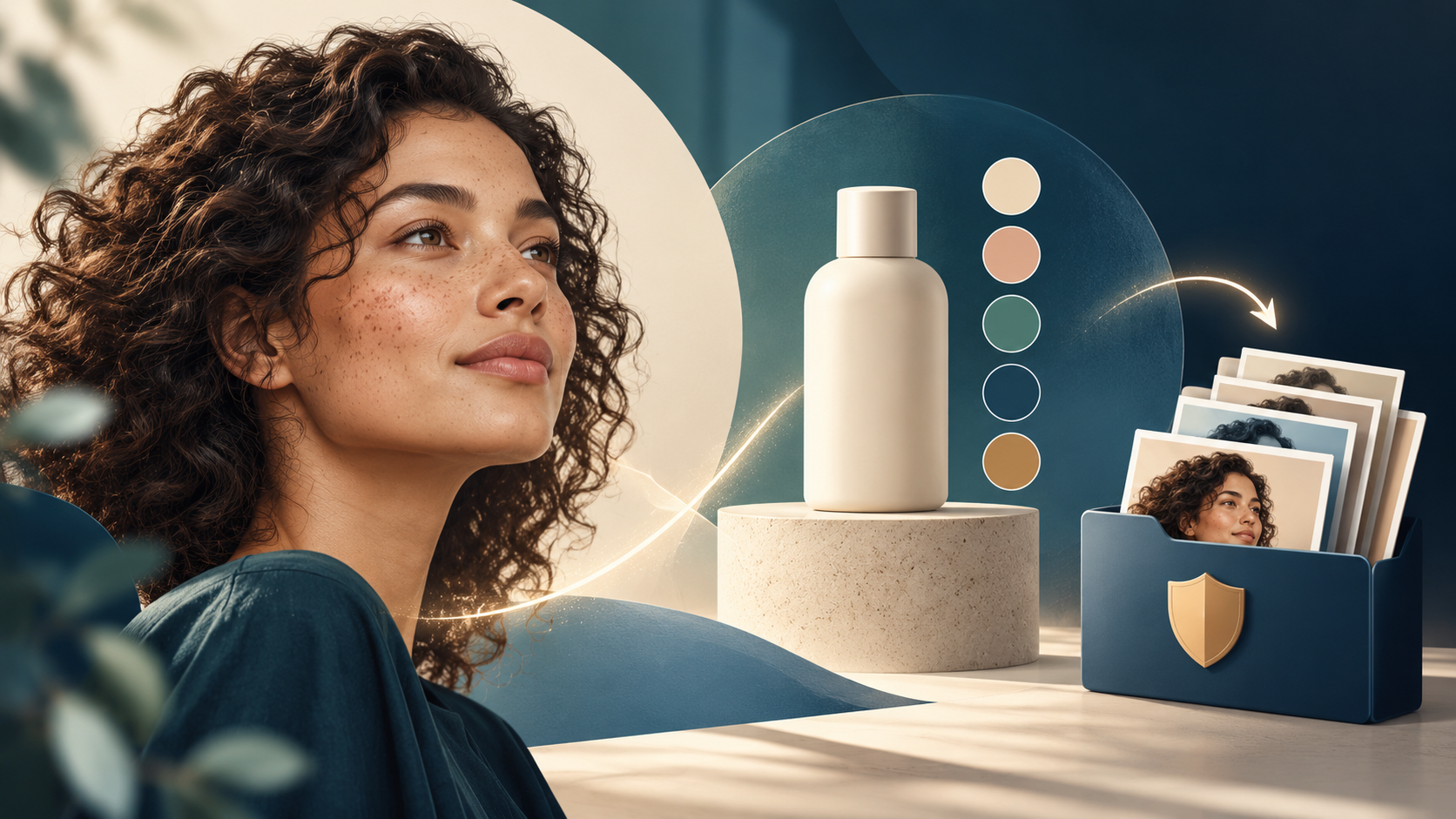
Stray Hair Retouching uses Outer hair and Inner hair controls to reduce stray hairs outside and inside the hair area. Protection Brushes can preserve areas you want to keep or correct an inaccurate detection. Skin Tone Retouching unifies skin color with a target choice and Temperature, Tint, Saturation and Lightness controls; its automatic mask can also be adjusted with brushes.
Body Skin Retouching brings Even Skin to larger areas of the body. Its Texture control determines how much texture remains when subtle contrast differences are evened out. The release notes explain that the skin retouching is applied per person and each person’s face needs to be visible. Do not assume a crop without a visible face receives the same treatment automatically.
For a professional portrait, specify which hairs are distracting and which personal characteristics should remain. You might ask for stray hairs against the background to be reduced without removing every fine hair around the face. Also agree whether differences between hand and facial skin tones should be reduced while preserving skin texture and the subject’s character. That is clearer than a broad instruction to “make everything smooth.”
Capture One says the AI models for Stray Hair Retouching and Skin Tone Retouching run on your own device without uploading images to a cloud. That statement concerns processing by those features, not a promise that every sharing service or the entire delivery workflow is local. Agree separately on who receives the photographs and how the finished edits will be approved.
Back up Sessions and Catalogs before upgrading
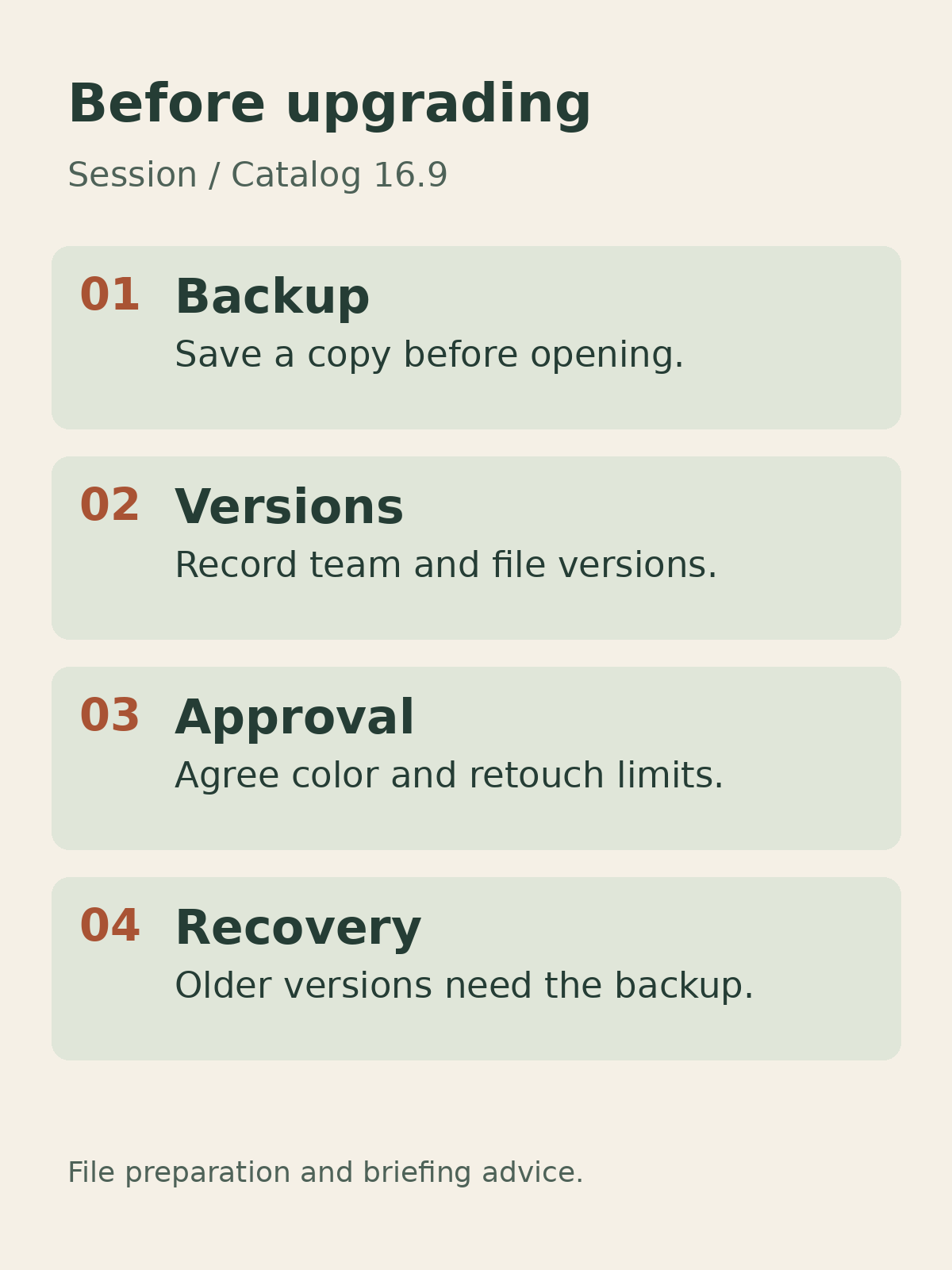
The most consequential working-file warning appears near the start of the release notes: Sessions and Catalogs created in Capture One 16.8.6 or earlier must be upgraded to open in 16.9. After upgrading, they cannot be opened in older versions unless restored from a backup. This is not the same as simply opening an exported JPEG photograph.
Keep a backup before opening older working files in the new version. Record the versions used by team members, who holds the original archive, and which copy may be upgraded. If a project still depends on a computer running an older version, agree on the handoff first. Capture One provides instructions for upgrading a Session, upgrading a Catalog and restoring from a backup.
Multi-User Sessions is now out of beta, with exports to a collaborator’s computer, Follow for viewing the latest capture, and a connection overview. Its scope matters: it is available in Capture One Studio on macOS. Do not assume every license or Windows computer has the same collaboration workflow, or that every client needs the application simply to approve final photographs.
When briefing Shaniba Creative Industry, start with the result you need: product color references, portrait retouching boundaries and the files to be delivered. SCI’s editing and retouching service is a starting point for discussing image requirements, not a promise to use a particular application. Discuss a sample photograph and your editing instructions so that the approval scope is clear before work begins.
Share this post to: