Need a Layered Photo File? Specify What Must Remain Editable
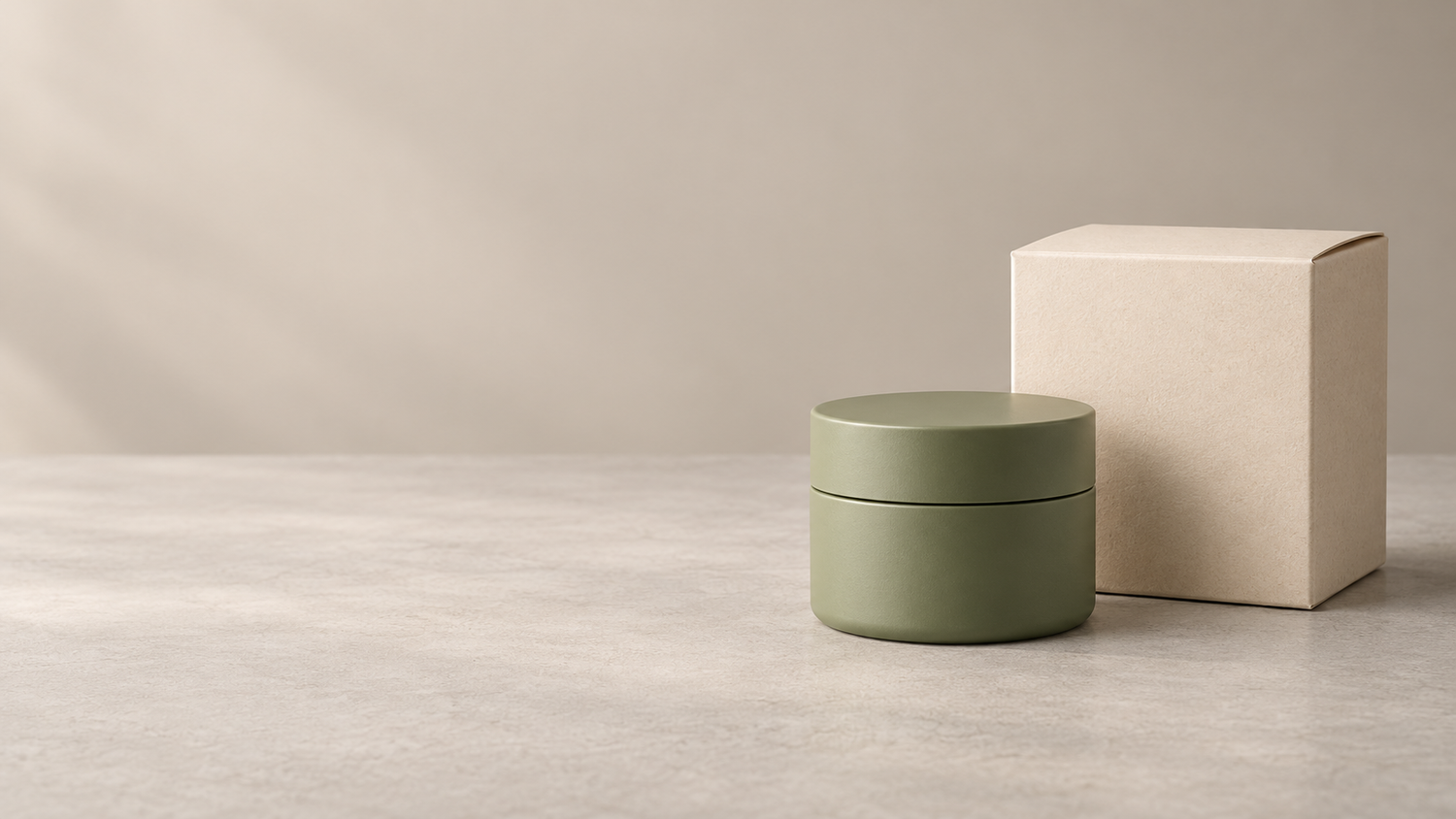
Imagine this hypothetical situation: your ceramic jar photo looks right, but your designer wants to move the product to make room for a promotional headline. When they try, the background moves too. The large file contains one finished image, not independently adjustable parts. You need more than a bigger photo: you need to specify which elements must remain editable.
Layered photo files can help when their structure matches that next task. A complete working document is not always necessary, though. Start with the change your designer needs to make, then decide what kind of handoff would actually support it.
Daftar Isi
Name the next change before naming a file format
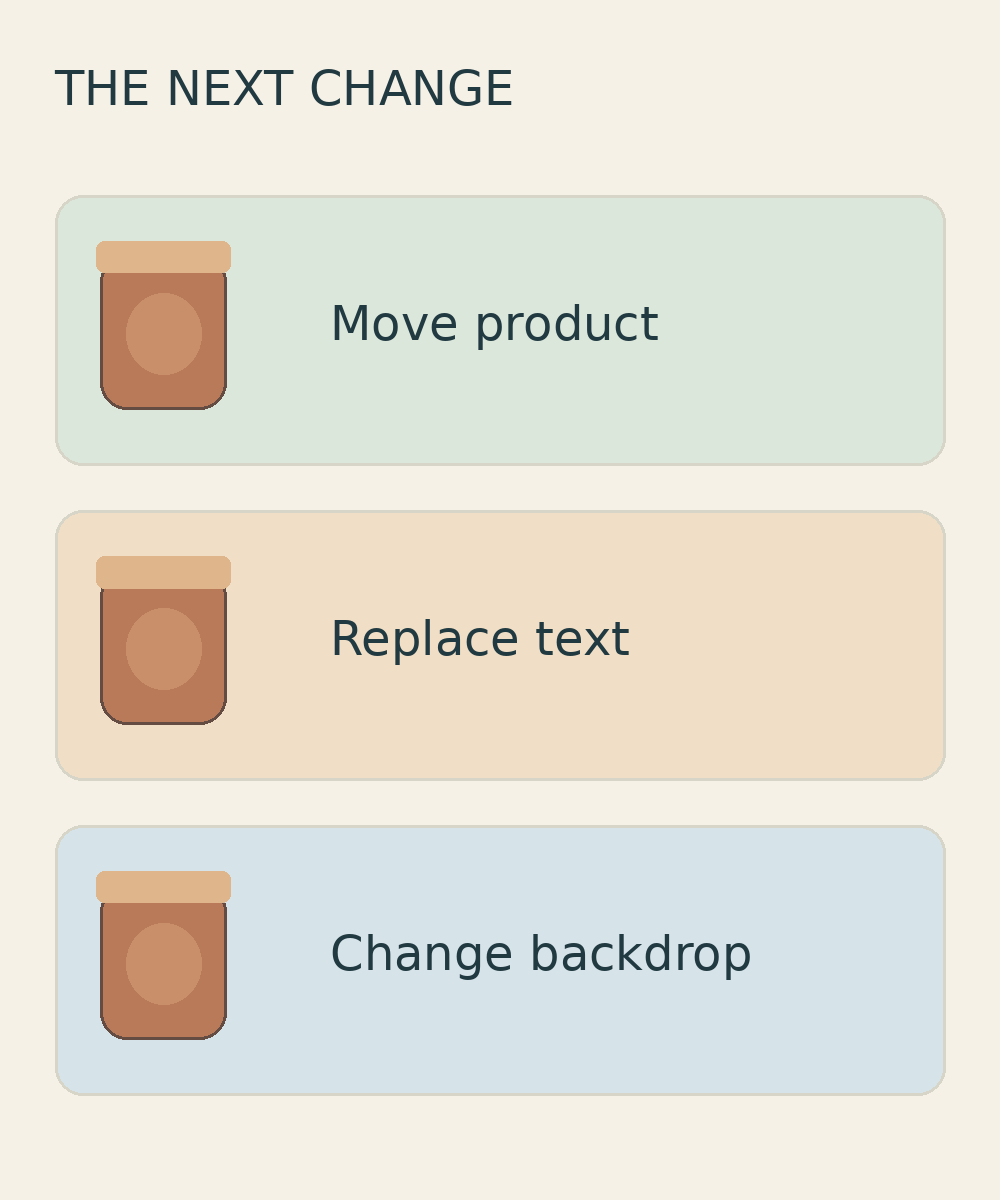
“Please send the photo master file” leaves plenty of room for misunderstanding. Do you want to move the product, replace the promotional wording around it, or change only the background? Each request calls for different elements. Identify who will make the change and name their receiving application, including its version if known.
For the hypothetical jar layout, break the request into three practical decisions:
- Move the product while keeping the background: the designer needs to select the jar independently. Ask what will fill the area revealed when it moves.
- Replace the promotional copy: if your designer will add the wording later, it does not need to arrive as a layer from the photo editor. If it already exists in the layout, specify that its wording must be editable, not merely movable as an image.
- Change the background while preserving the product: ask whether that change can leave the approved appearance of the jar intact.
Rank these needs. If you only plan to add wording outside the photo, a finished image may be enough for the layout. If the jar must move, separating it from its surroundings matters. This gives the editor a clearer question than “make everything editable”, which does not define what a successful change looks like.
Distinguish a finished image from separated components
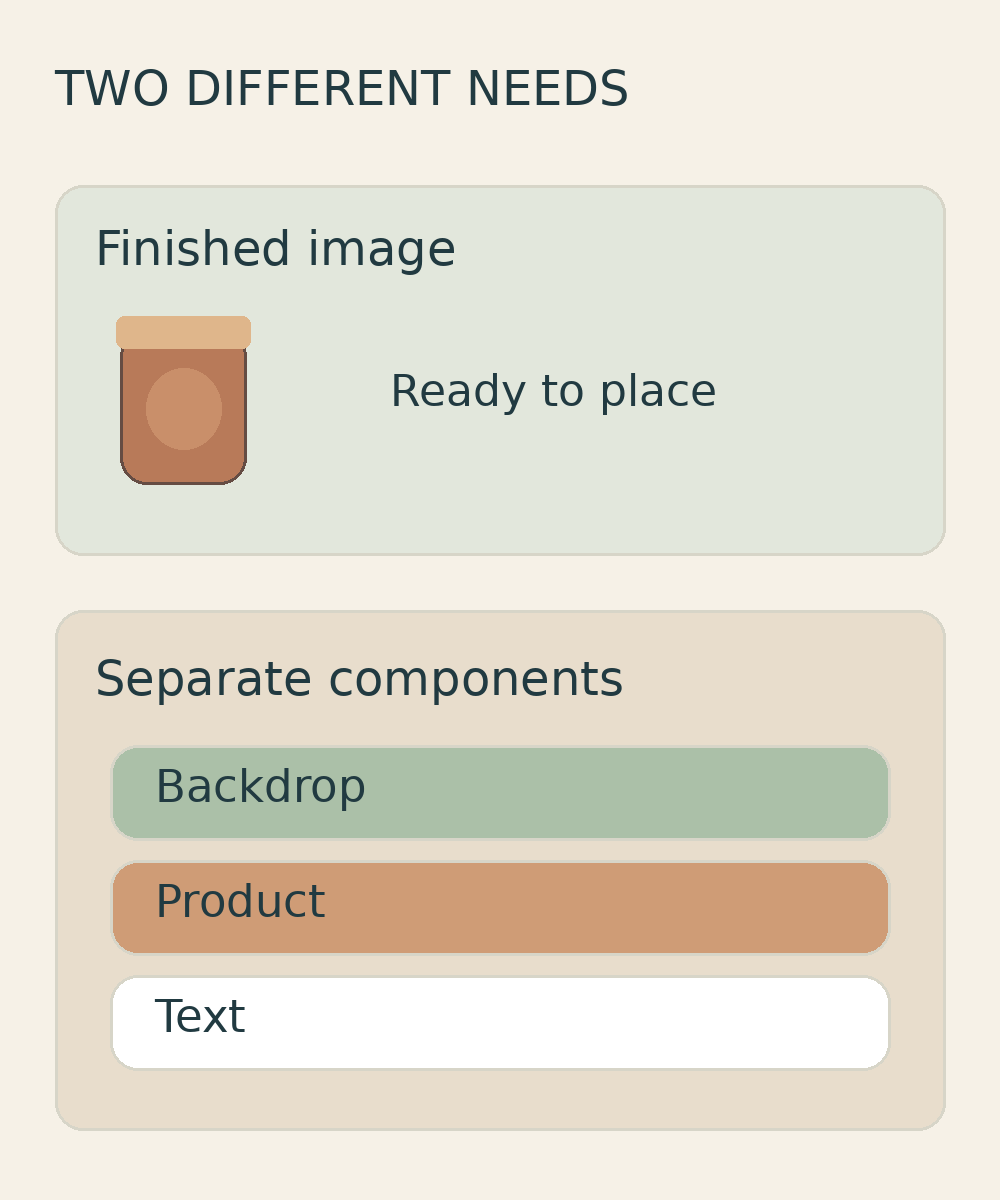
Adobe describes layers as individual image components that make editing and rearranging a composition easier. Its analogy is a stack of transparent sheets, with different parts of the picture on different sheets.[1] For your project, the useful question is not how many sheets exist, but whether the elements you need are independent.
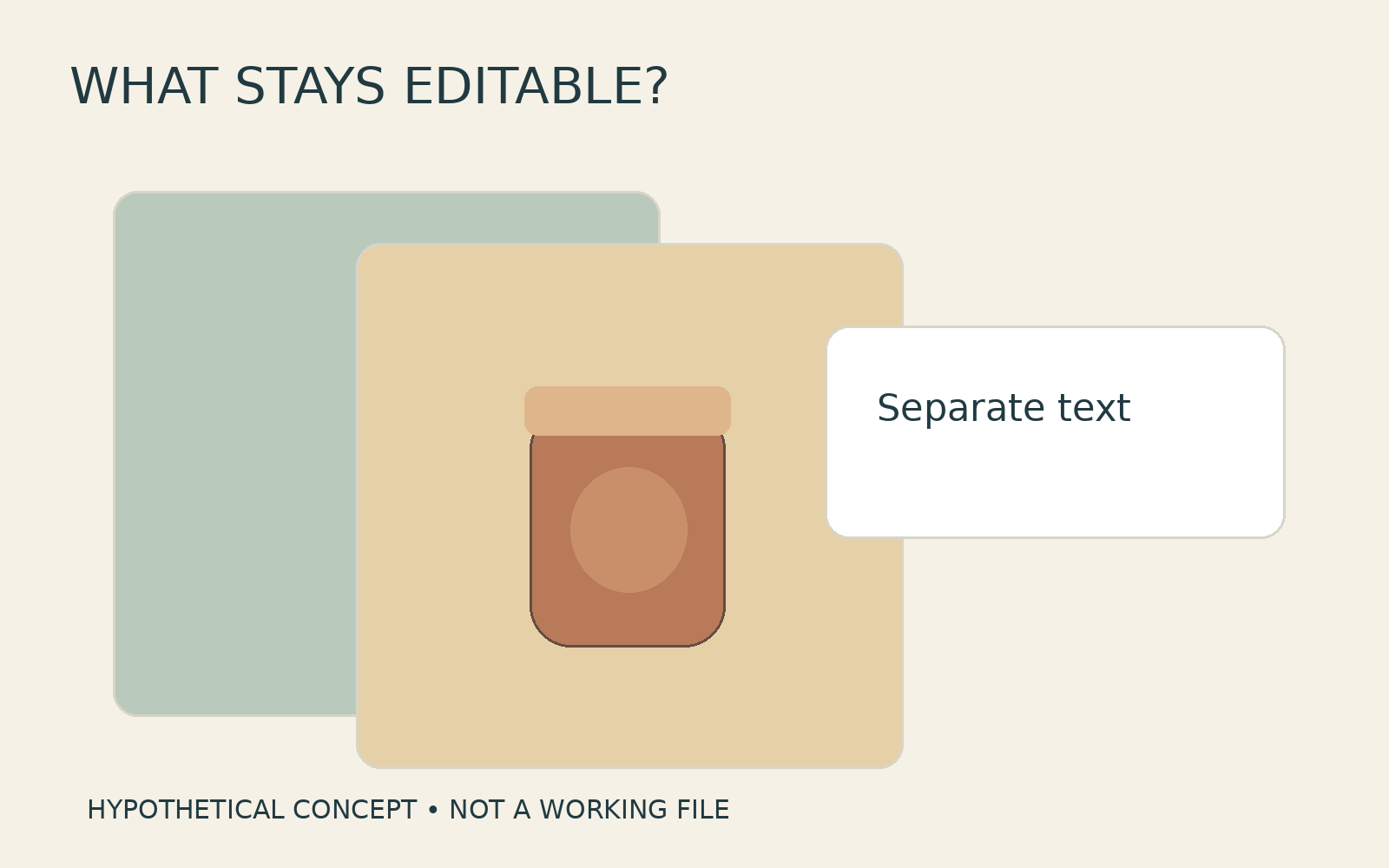
Discuss three possible deliverables. A finished image preserves the approved composition for use as it stands. An isolated product export, if available, gives the designer a product element around which to build a layout; that is not automatically a layered document. A layered document can retain several components in one file, but you still need to confirm how those components are organized.
Flattening removes an important distinction. For Photoshop’s Flatten Image operation, Adobe states that all visible layers are permanently combined into one background layer.[2] The picture may look the same while no longer offering the same independent edits. Adobe therefore advises saving a layered copy before flattening.[2]
Do not assume that separate source components can simply be recovered from a finished export. Ask for a short inventory: product, background and text, where those elements actually exist. A PSD extension alone does not confirm that each one remains editable in the way you need. Equally, you do not need every internal retouching step if a separate product element solves the next design task.
Try one file in the receiving application
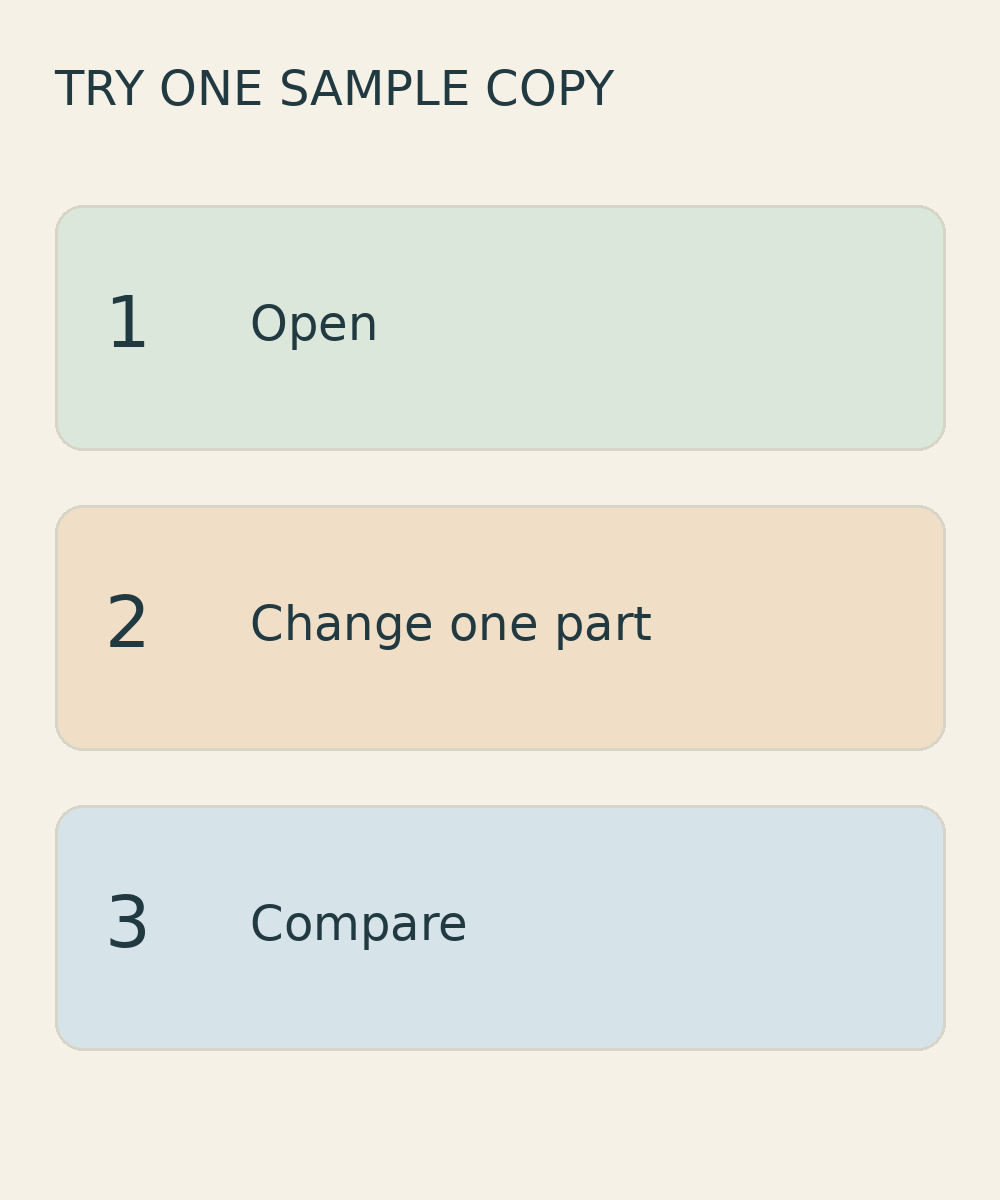
Before extending the agreement to a large batch, ask for a permitted sample that the receiving designer can try. Work on a copy rather than the only original. The aim is to check your intended change in the application that will actually be used, not to prove that a format behaves identically everywhere.
- Open and compare. Match the starting appearance to the approved preview. Look for missing wording, product details or background content.
- Identify a named element. Ask the designer to find what both parties mean by “product” or “background”, rather than simply counting layers.
- Make one small change. Move the jar slightly, for example. Check that its background stays in place and inspect the newly exposed area.
- Try the other agreed requirement. If wording must be editable, replace a word. If only the background should change, compare the product’s appearance with the reference.
Describe the result specifically: “The jar moves independently, but the promotional wording cannot yet be replaced.” Report warnings or unexpected results before relying on the file. Ask which supporting components are needed and whether they can be included. A file that opens successfully has passed only the first part of an editable photo handoff, not every requirement.
Agree the delivered versions and editing boundaries
Bring the decisions together in a short handoff note. For example: “Our designer will reposition the jar and replace the promotional wording in the application we have named. Please confirm whether a separate product, suitable background and editable wording are available where already included in the layout. Include the reference preview and approved finished image. If the source components are unavailable, please suggest a feasible alternative before proceeding.”
Keep the ready-to-use version separate from the copy intended for further changes. Give them distinguishable names and identify one preview as the approval reference. This helps your team avoid using an unapproved experiment as the final image. Also record what should remain unchanged, such as the product’s shape and appearance.
At Shaniba Creative Industry, Photoshop (.psd) files are not provided by default; delivery requires a separate arrangement.[5] That does not establish that every requested element is available as an independent layer. Confirm source availability, the required structure and the delivery scope before commissioning.
If you need an online photo editing service from SCI, bring your intended changes and receiving application to the SCI consultation hub. Ask which deliverable is feasible rather than assuming working files are included.
References
- [1] Layers overview in Photoshop | Photoshop
- [2] Flatten layers in Adobe Photoshop on desktop | Photoshop
- [4] Hubungi SCI
- [5] Best Photo Editing & High End Retouching Service #1 | Fast Response
Share this post to: